Create Visual Studio Code Project
Create a new project using the BACKND Function extension in Visual Studio Code
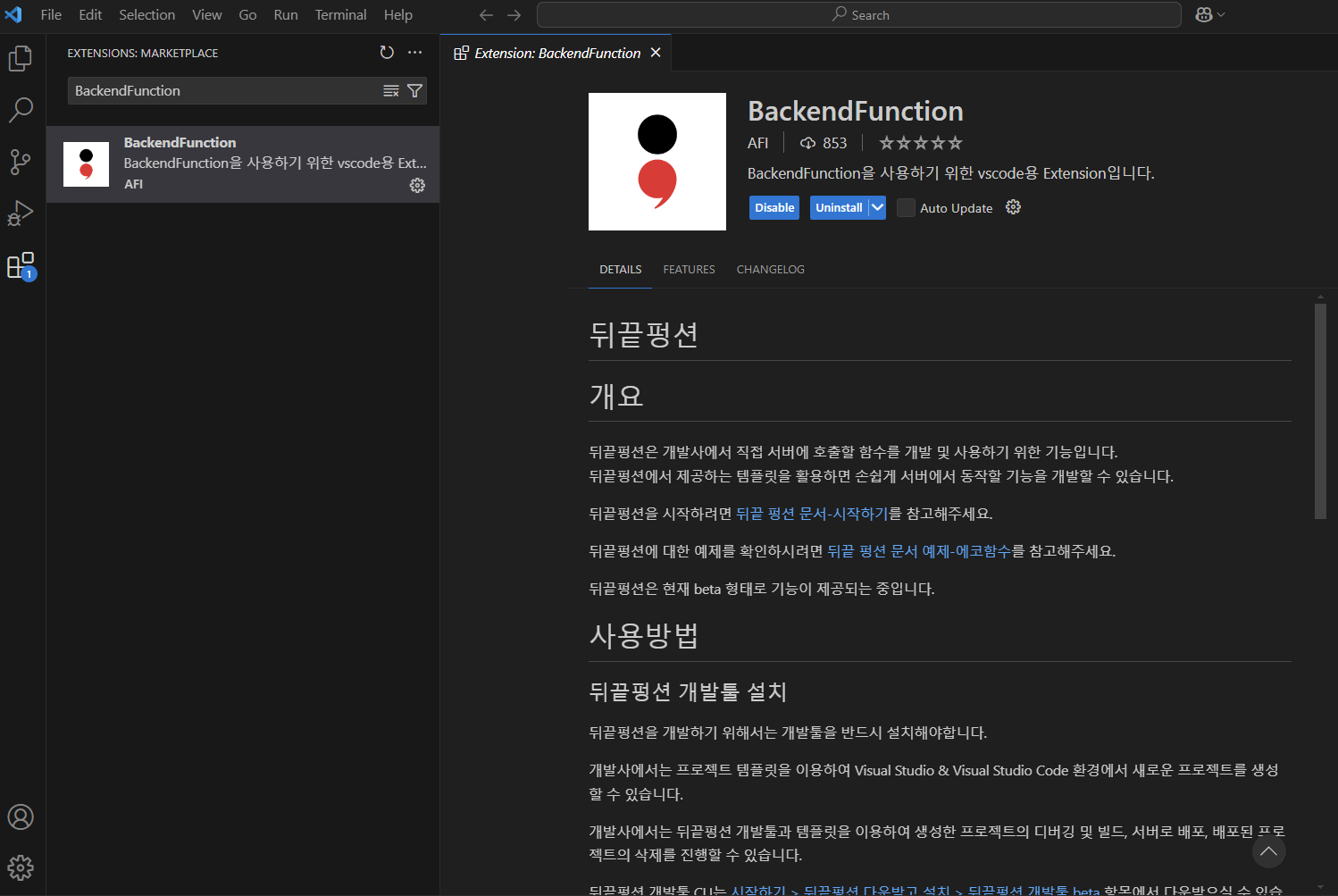
1. Install the BackendFunction Extension from the Marketplace
Search for BackendFunction in vscode - Marketplace search, then install the BackendFunction.
Alternatively, you can search on the vscode Marketplace webpage to install it.
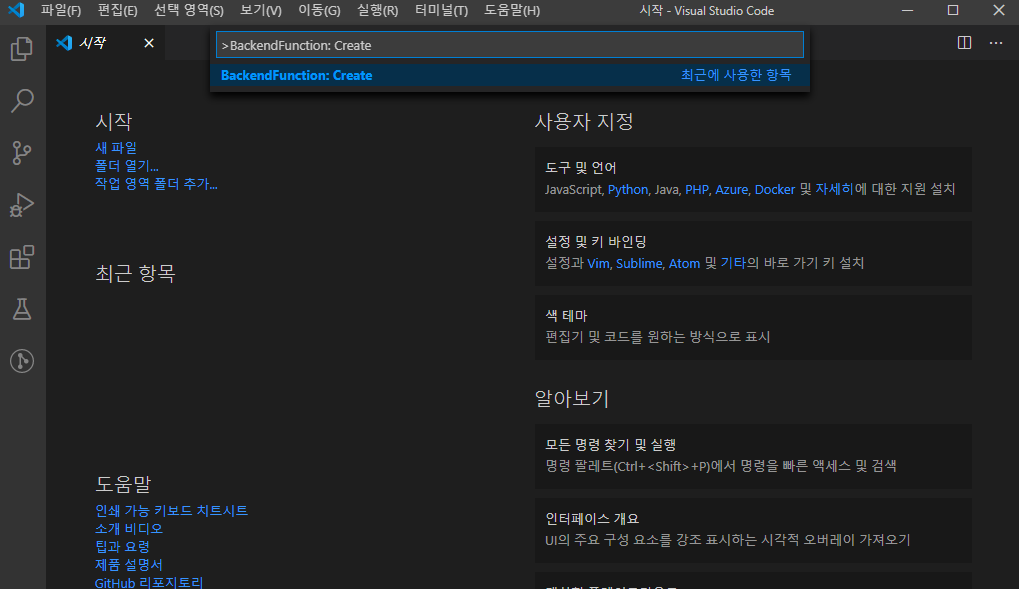
- Call BackendFunction: Create from the Command Palette.
After installing the extension, open the Command Palette (Ctrl + Shift + P) and enter BackendFunction: Create in the input box.
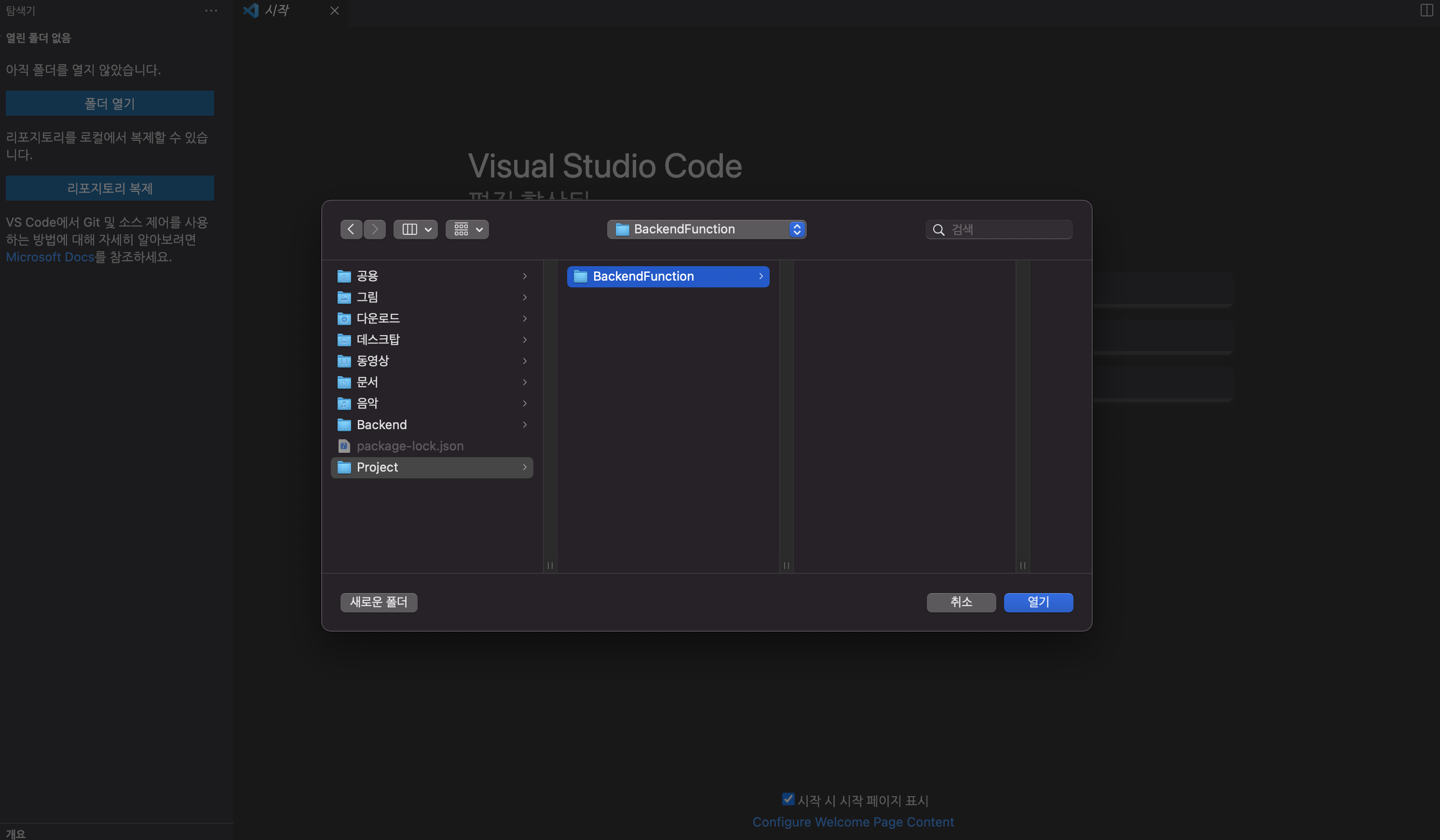
- Select the folder in which to create the project folder
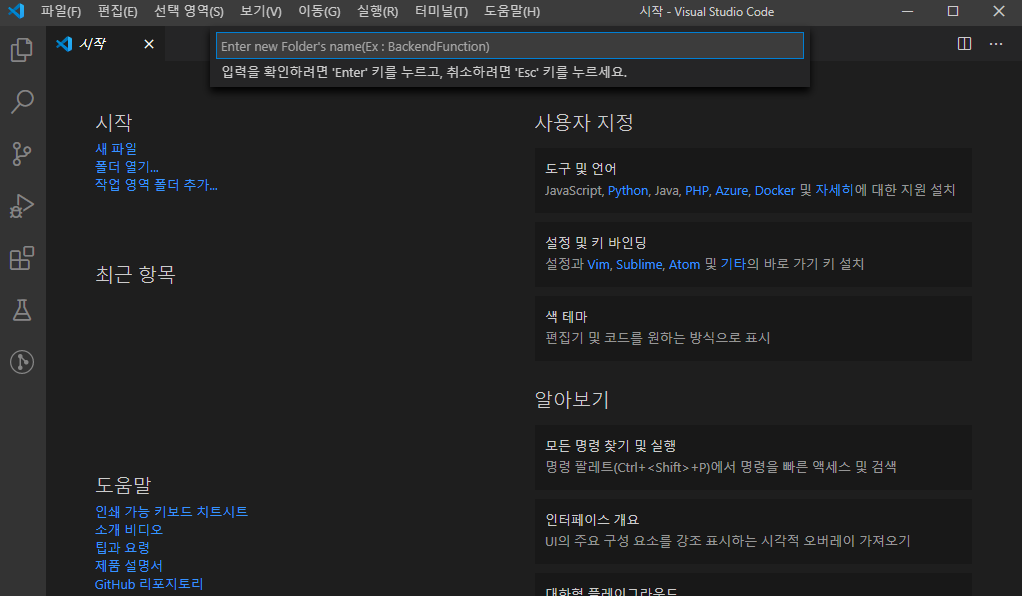
- Enter the name of the folder to be created.
An error occurs if the folder name is blank or there is a folder with the same name in the selected folder.
- Complete creation.
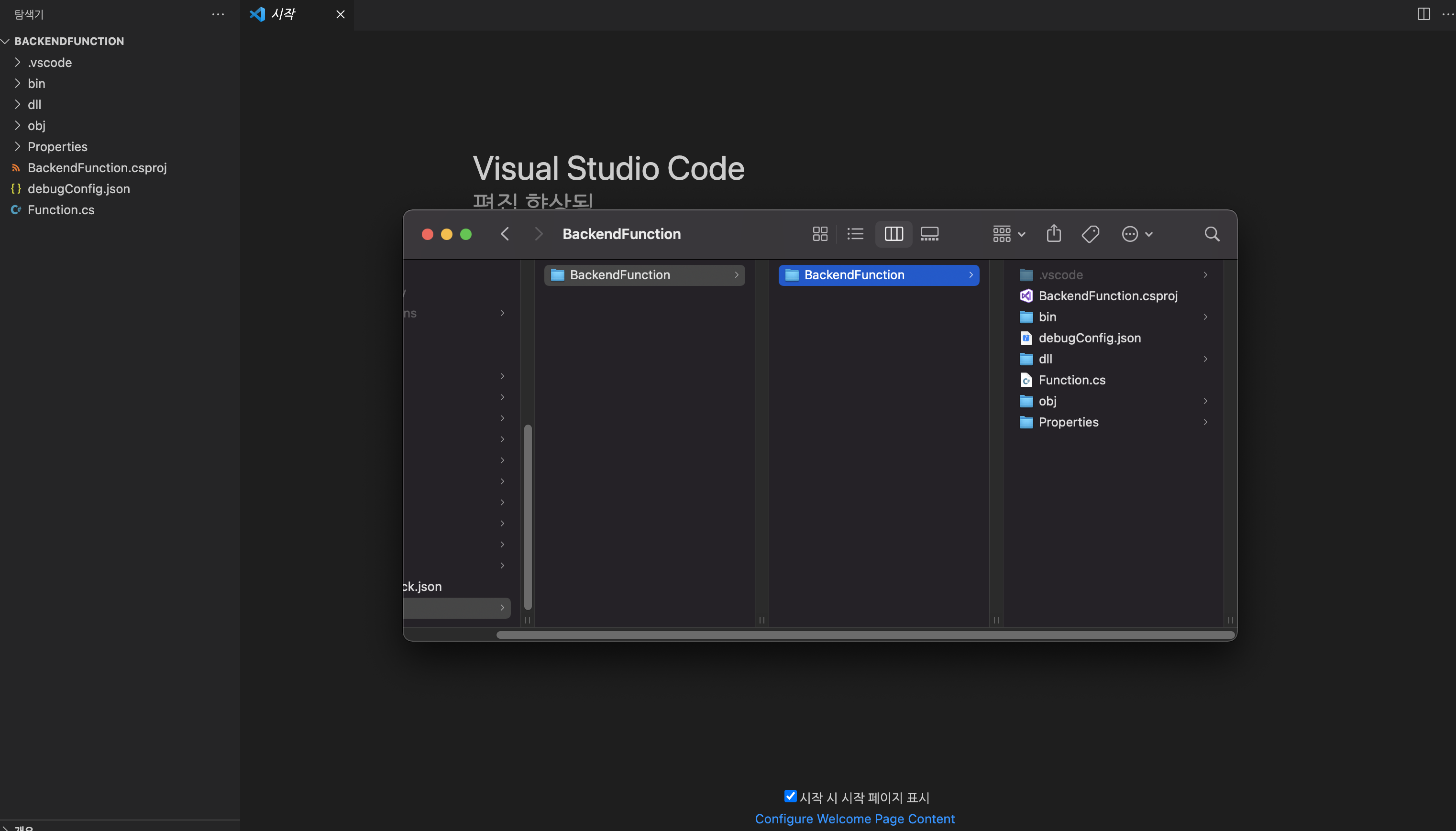
After that, when you create a template file, a new VSCode window will open and you will be directed to the project.
The project will be created with the file path specified by Steps 2 and 3.