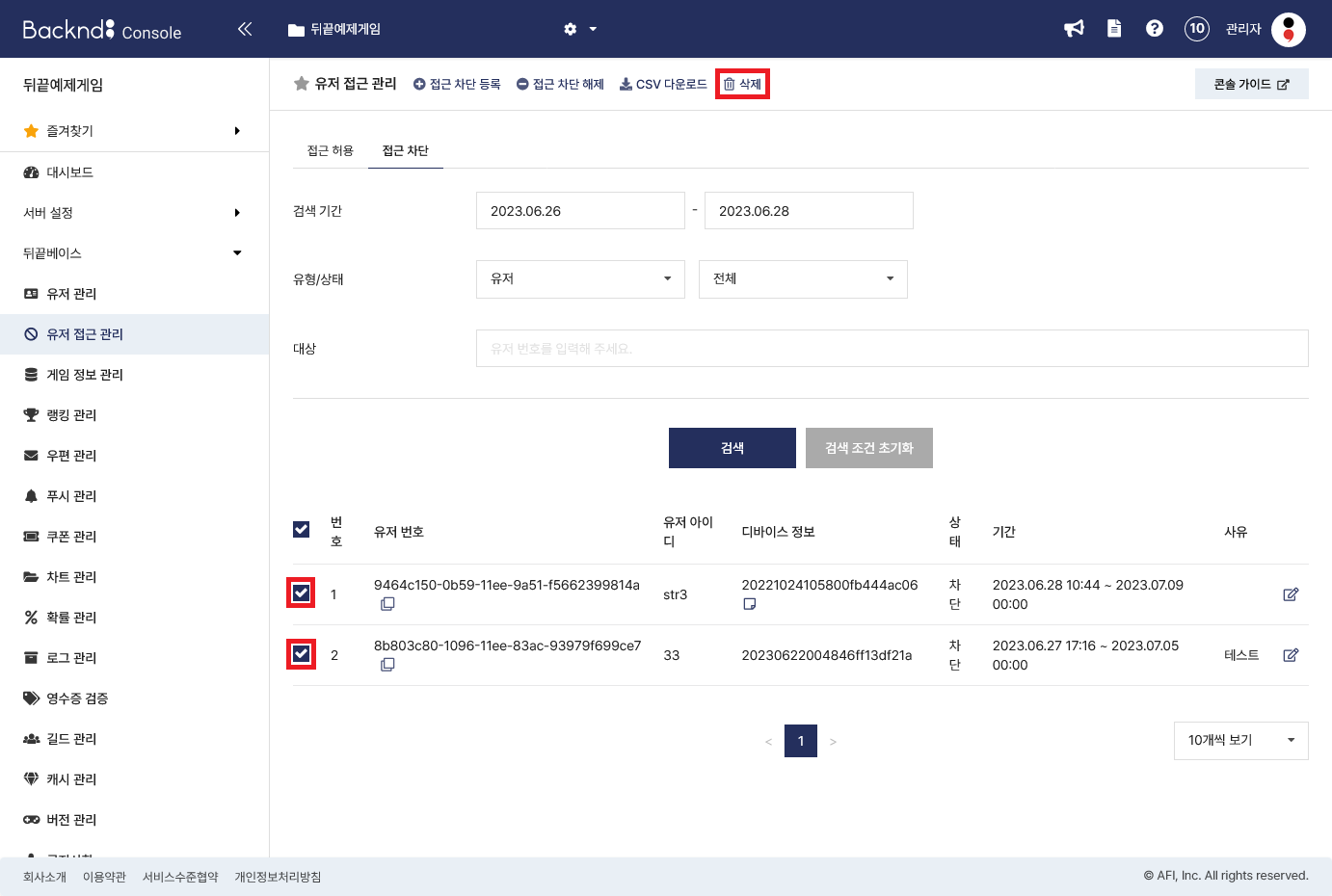
User Access Management - Block Access
You can configure access block by device or user via BACKND Console -> User Access Management -> Access Block.
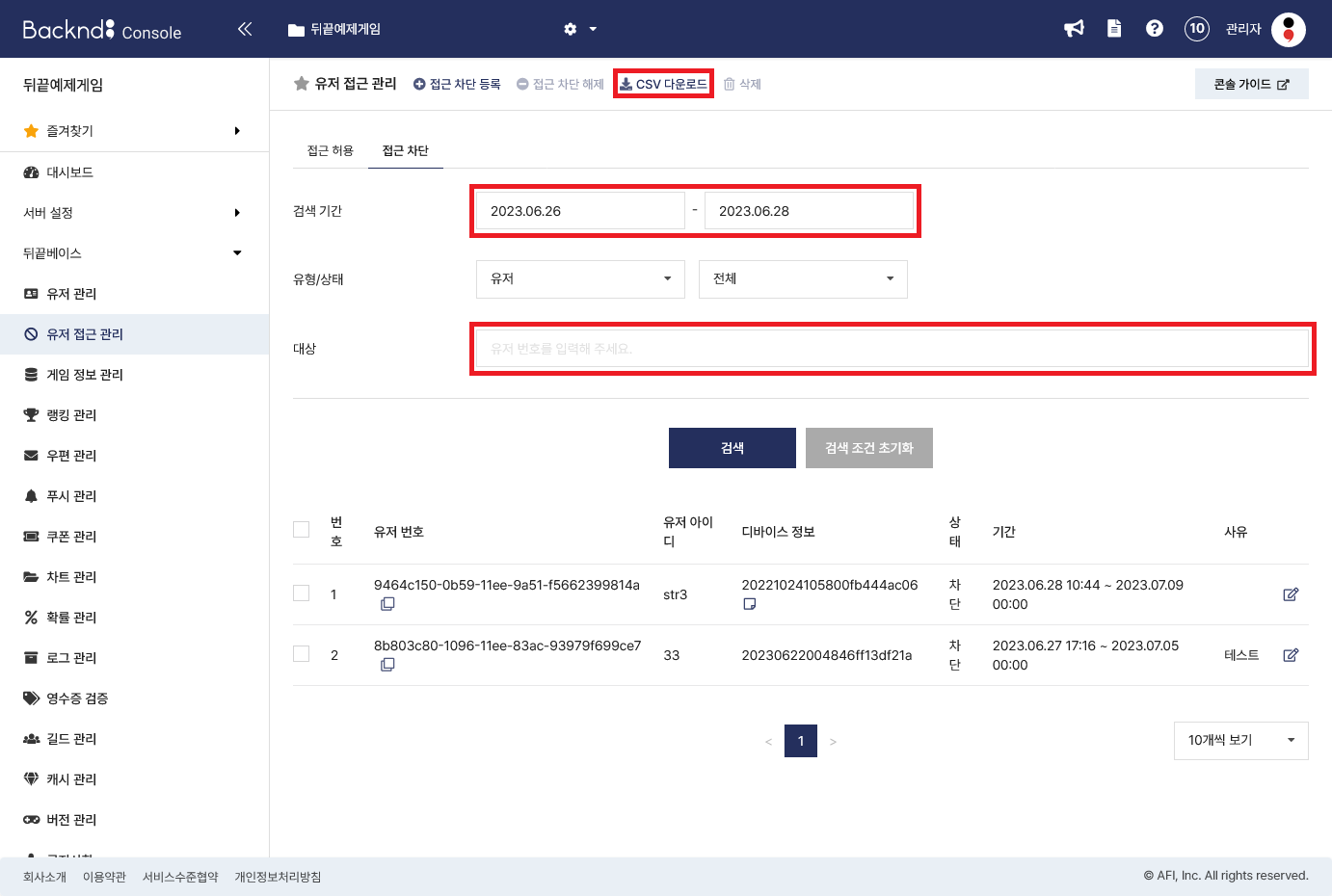
Search
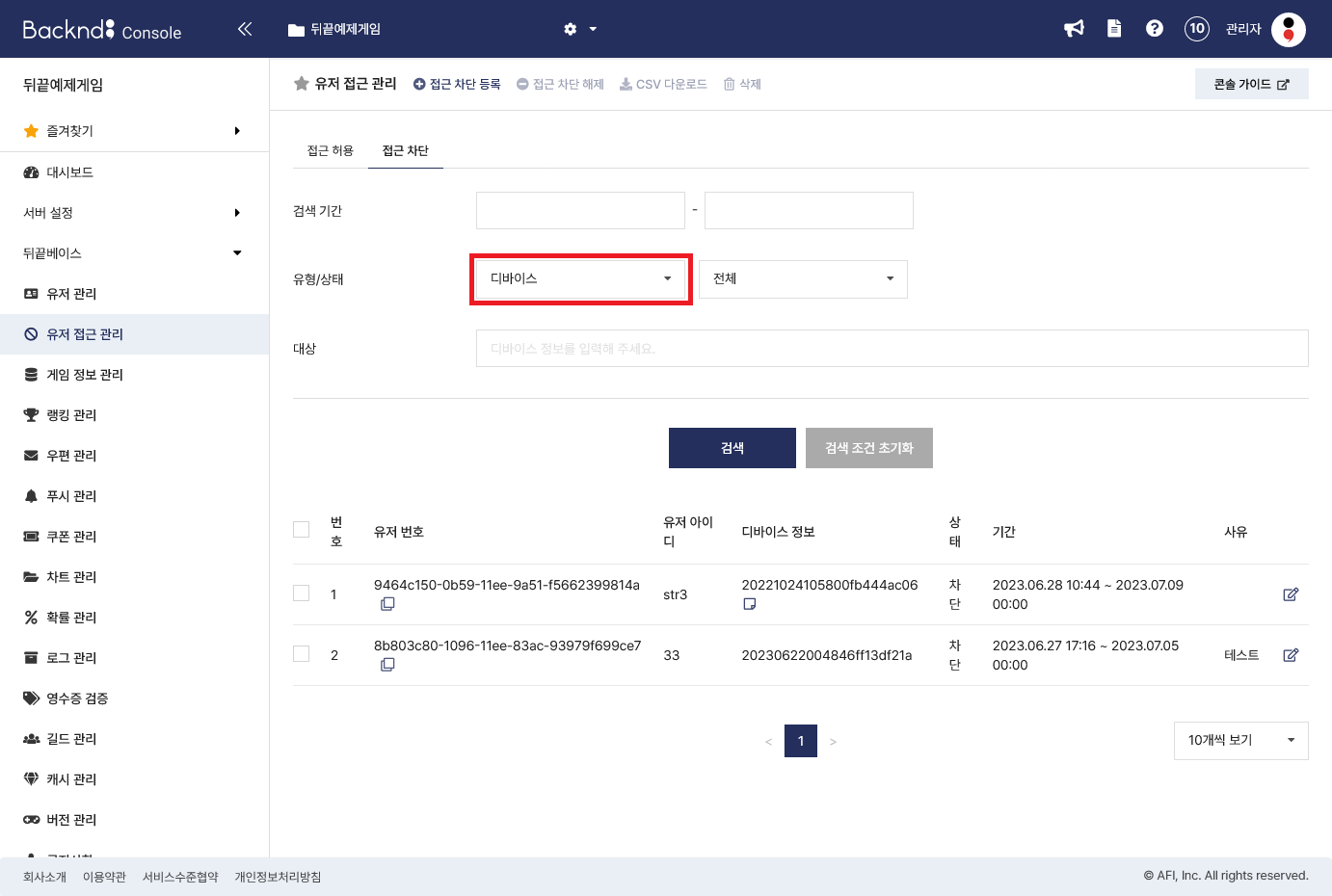
Options available for search are Period, Type/Status, and Target.
- For Search Period, you can set it in days, up to three months.
- For Type, you can select a user or a device.
- For Status, you can select All/Blocked/Unblocked.
- In Target, you can enter a user number or a nickname. (When using the multicharacter function, you can only type the user number.)
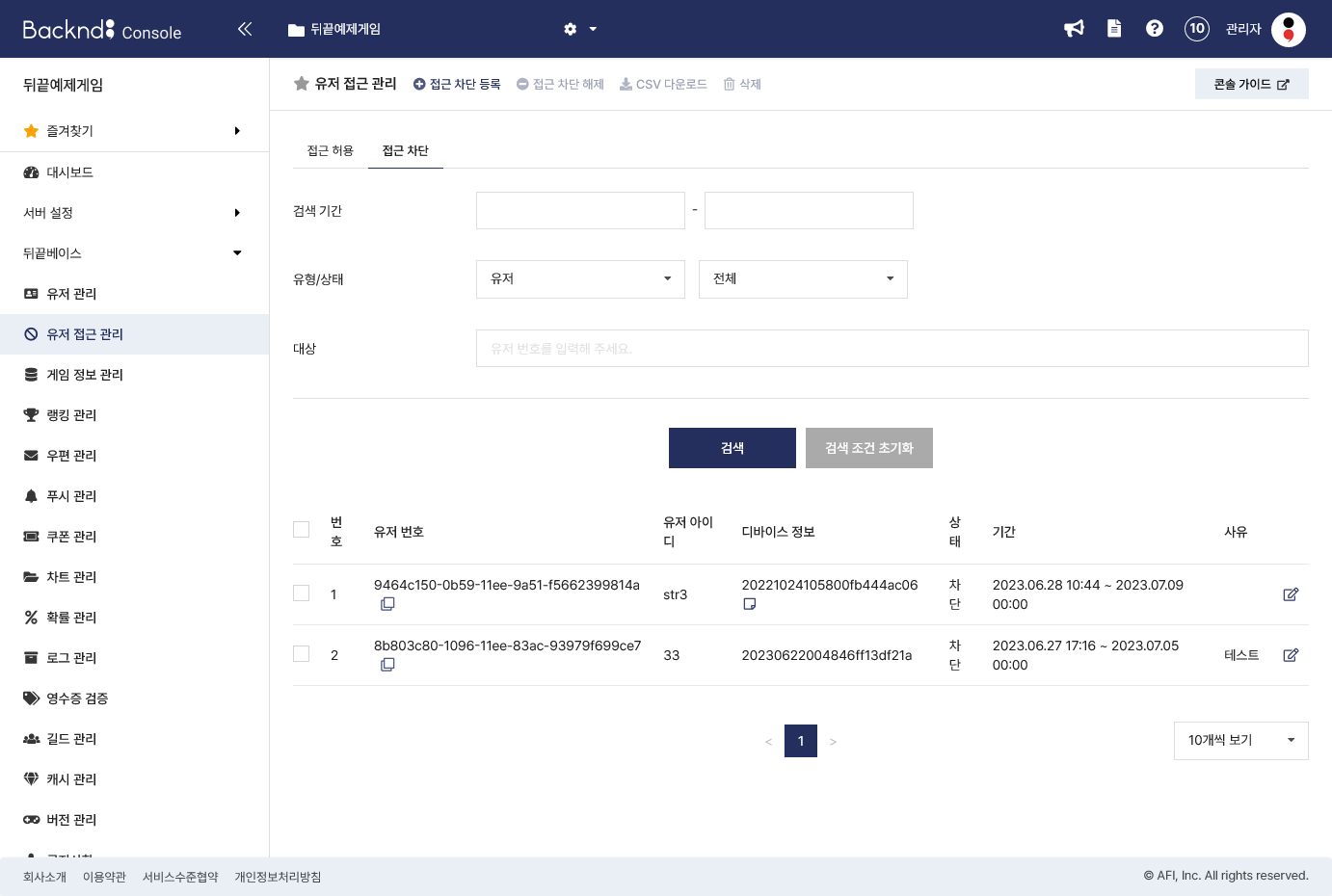
Search users
You can check the list of access-blocked users when searching with the Type set to User.

- Device information
If a user has information about two or more owned devices, see the Device Information column and click the "Details" icon to see the details.
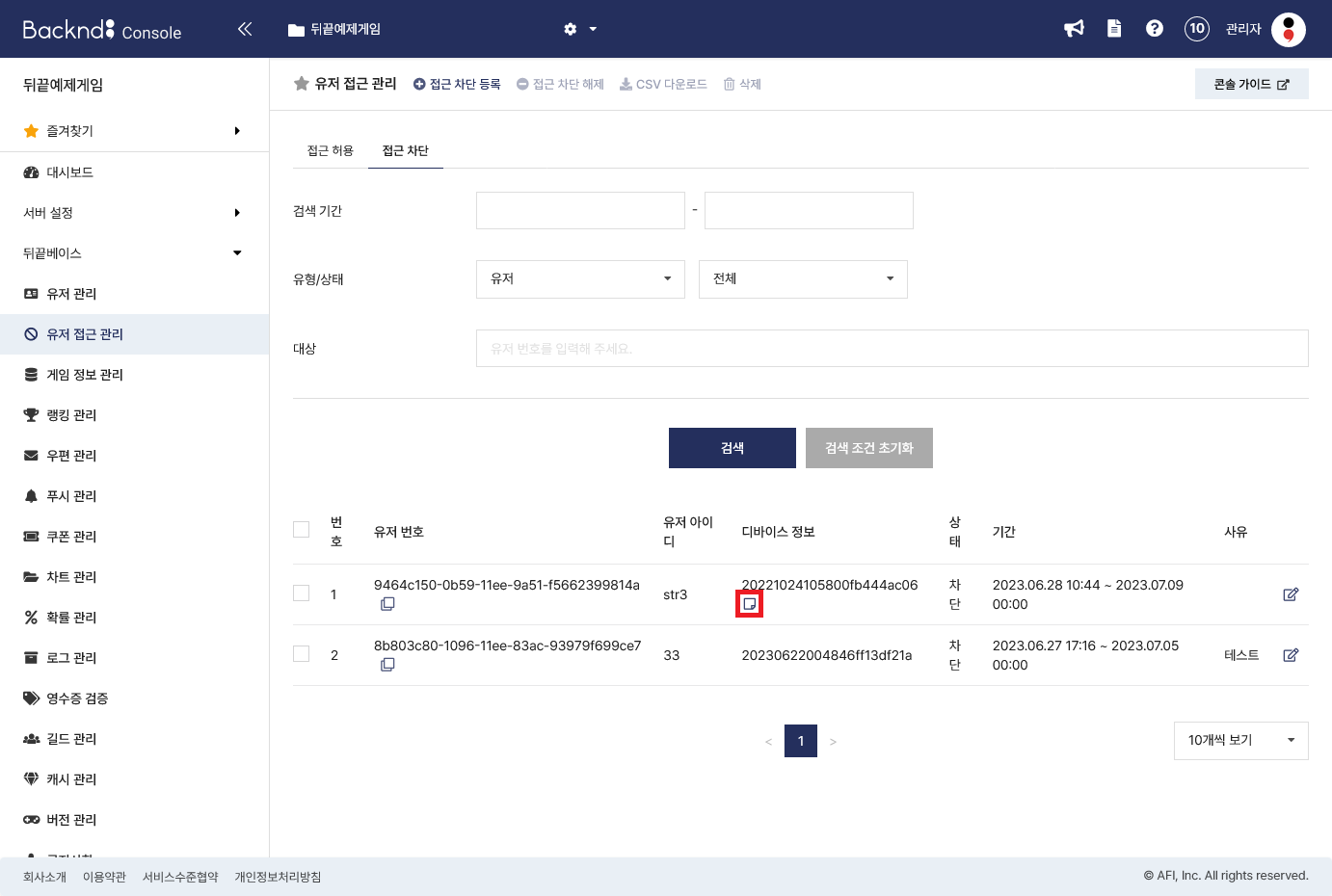
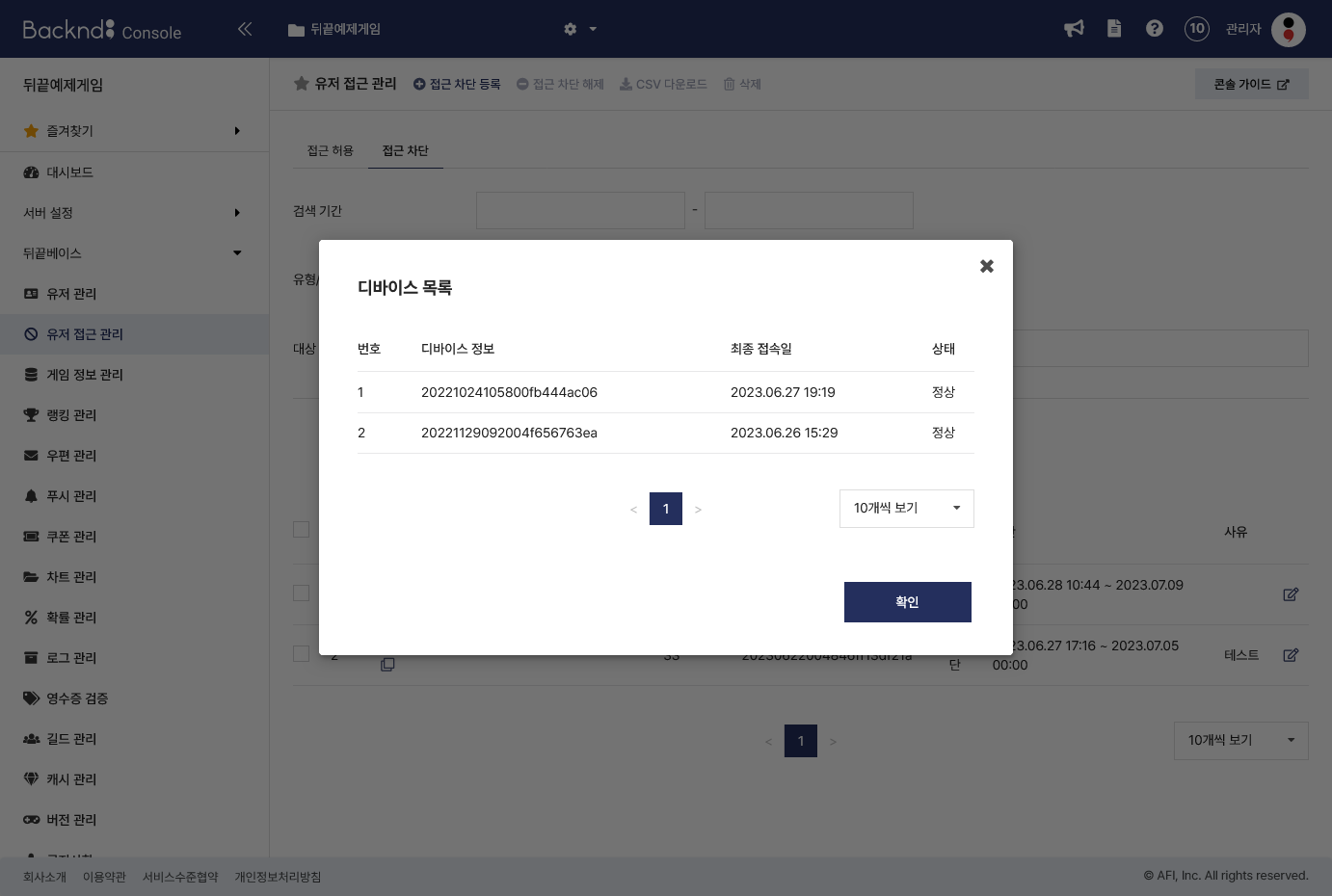
Search devices
You can check the list of access-blocked devices when searching with the Type set to Device.
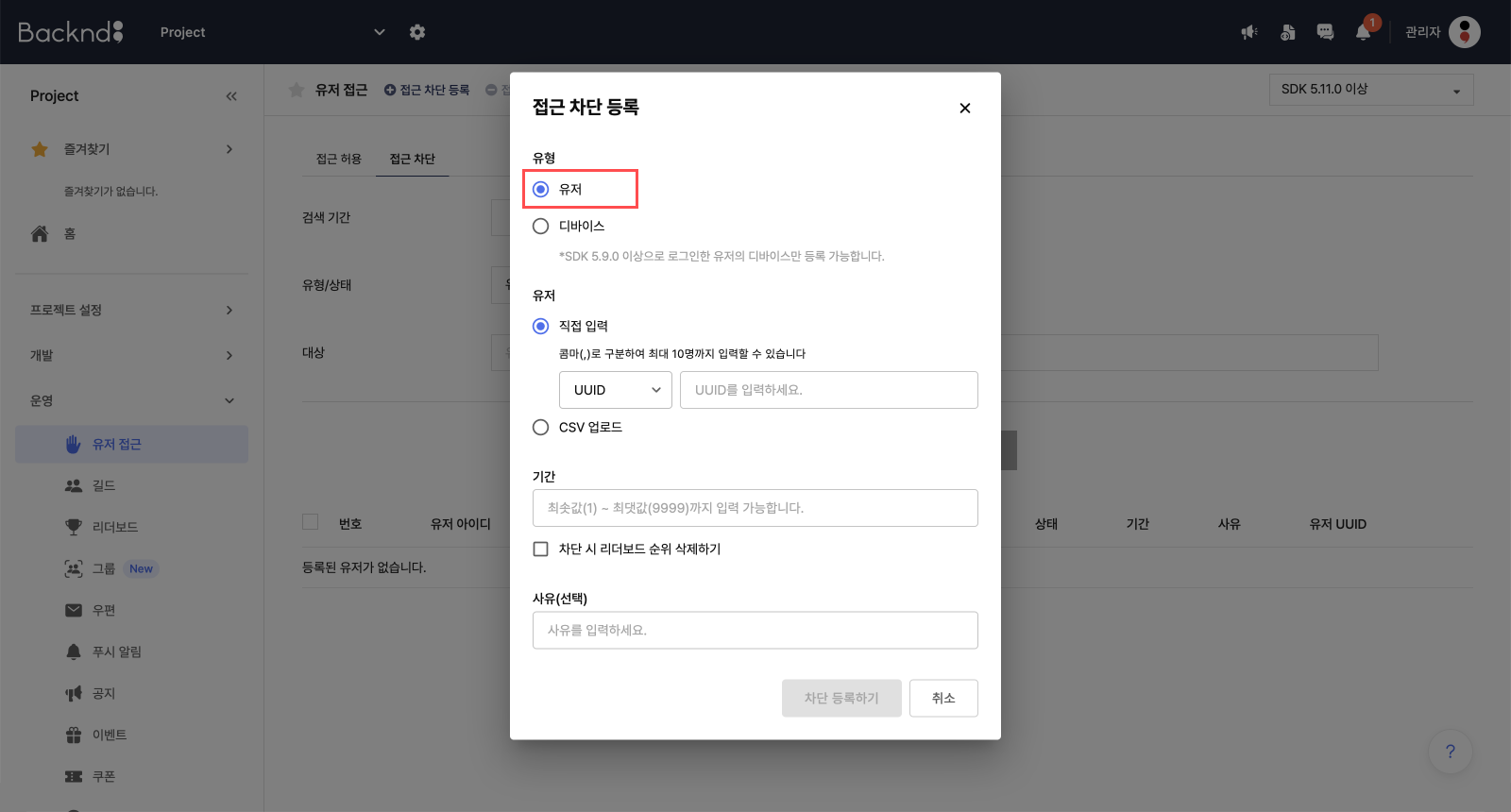
Block access - user
Enter the information of the user to block and the period of/reason for blocking.
- Users can be registered either by direct input or via CSV upload.
- For direct input, you can enter up to 10 users at once, separated by commas (,), using either UUID or nickname.
- If multicharacter is used, only user UUIDs can be entered.
- Users who are already blocked or do not exist cannot be registered.
- Block duration is entered in days, and the start date is set as the day after registration.
- If you select the "Delete leaderboard rank upon block" option, the user's leaderboard rank will be removed at the same time as the block.
- The reason is optional and can be up to 100 characters.
Upload user CSV
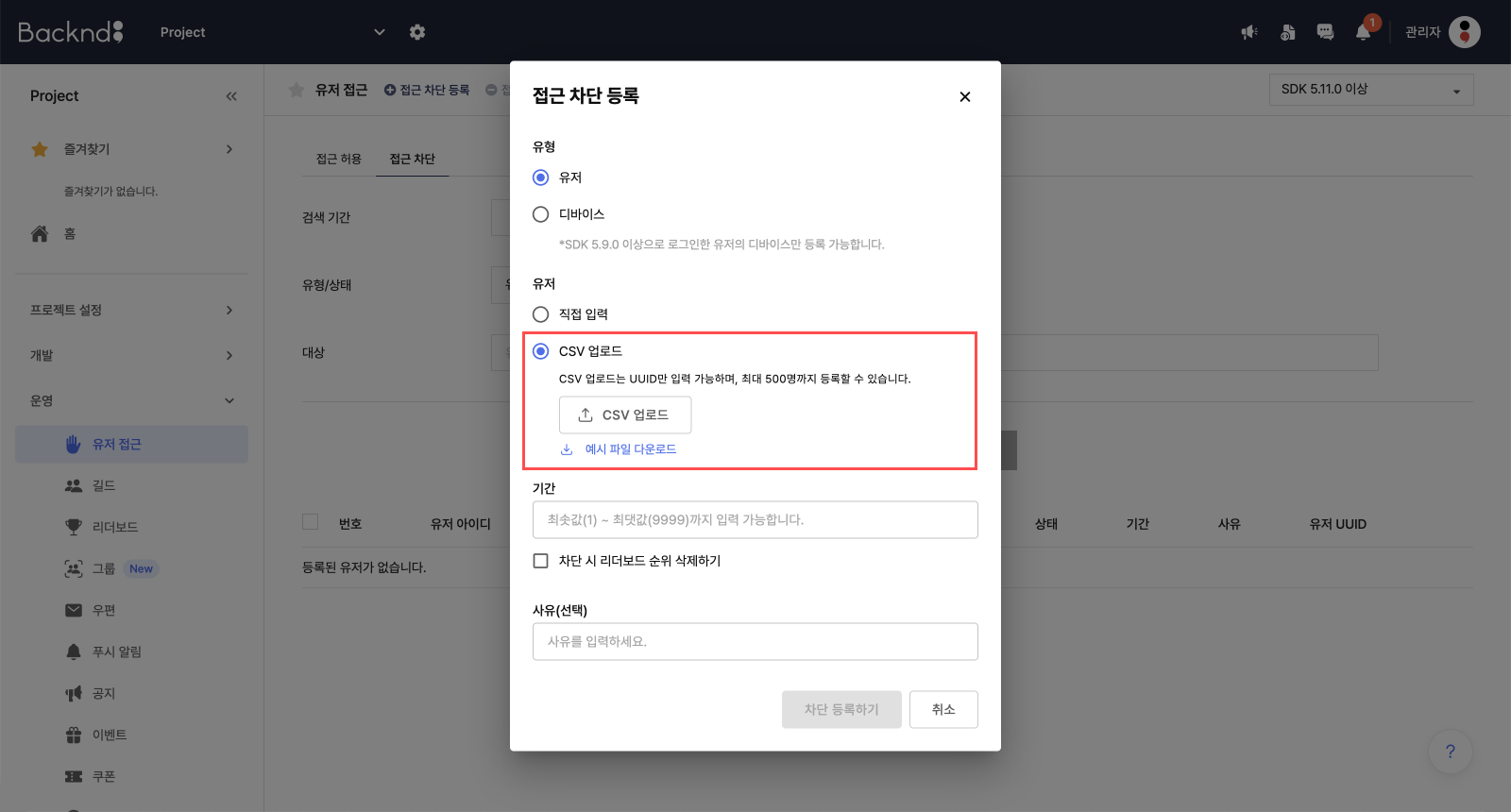
Upload a file with user UUIDs as shown in Example File.
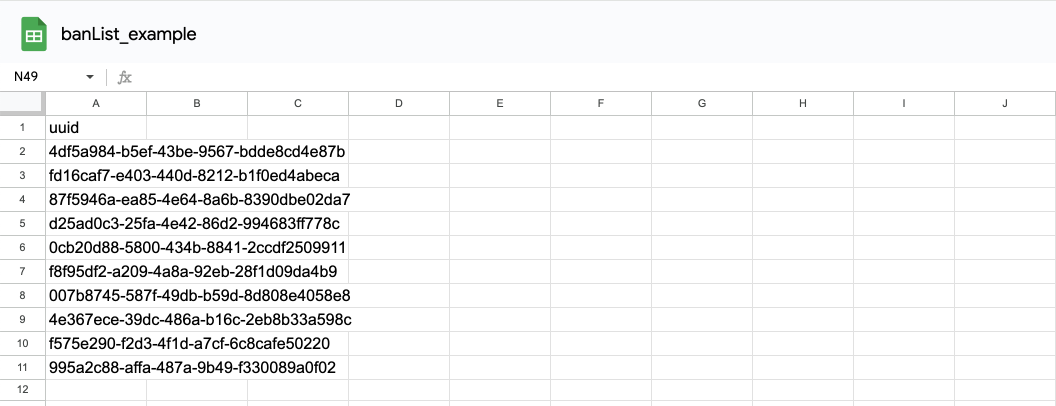
- The column name must be ‘uuid’.
- Each row should contain a single user UUID and you can enter up to 500 UUIDs at once.
- You can upload .csv, .xls, and .xlsx files. However, the uploaded file must contain only a single sheet.
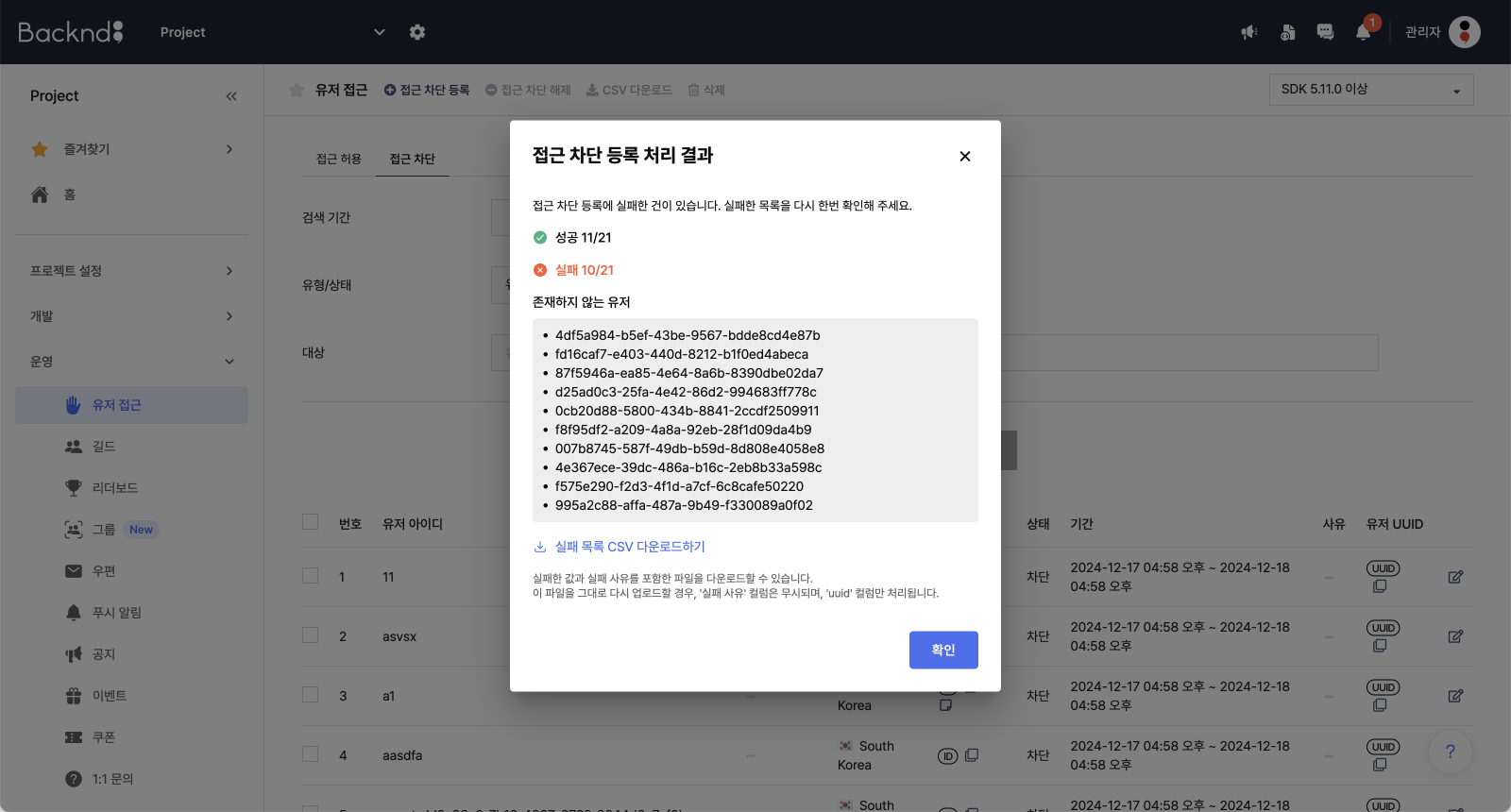
Access block registration results
- If there are any failed entries, the reasons and list of failures will be displayed.
- In the case of CSV uploads, you can download a file containing the failed entries and their reasons via "Download Failed Items CSV".
- When you re-upload the downloaded file, the "Reason for Failure" column will be ignored, and only the ‘uuid’ column will be processed.
Block access - device
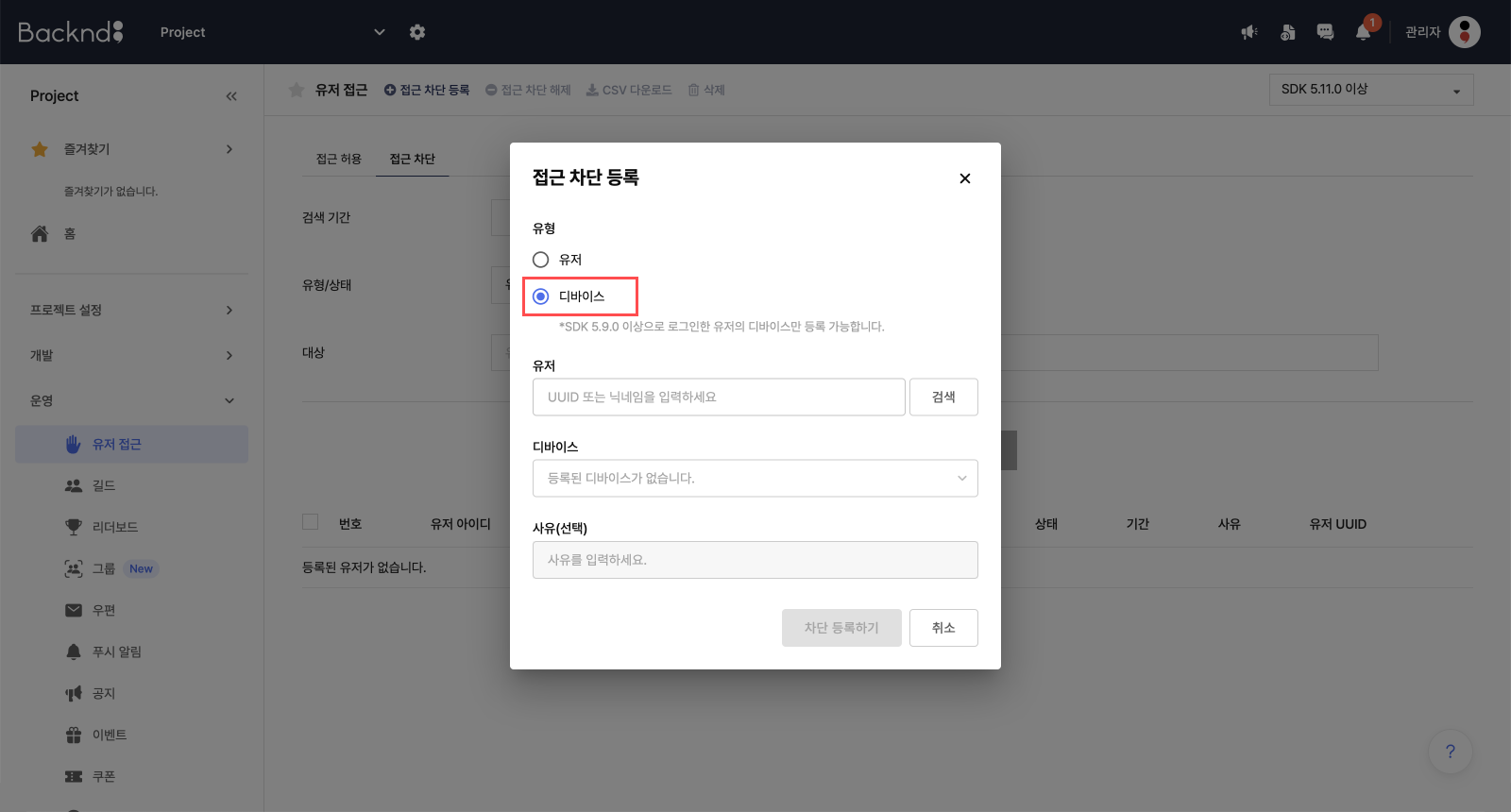
Enter the information of the device to block and the reason for blocking it. (Only the devices of users who logged in using SDK 5.9.0 or above can be blocked.)
- Search for the user whose device will be blocked.
- You can enter a UUID or a nickname.
- When using the multicharacter function, you can only enter the UUID.
- Once the user is searched, you can select a device to block in Device.
- This is a mandatory field, but you cannot select devices that have already been blocked.
- The reason is optional and can be up to 100 characters.
Modify access block
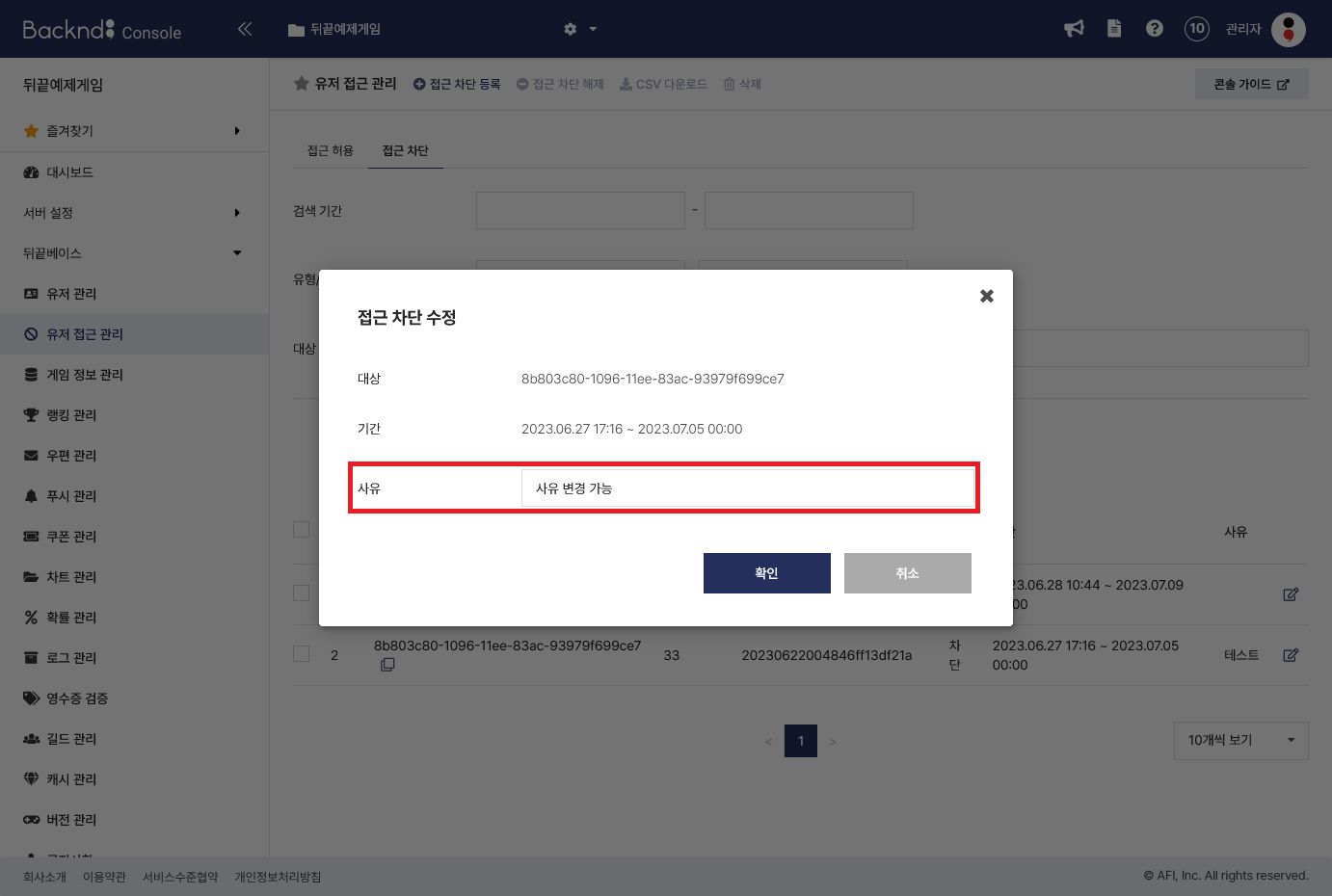
You can modify the Reason field of an access block case.
Unblock users/devices
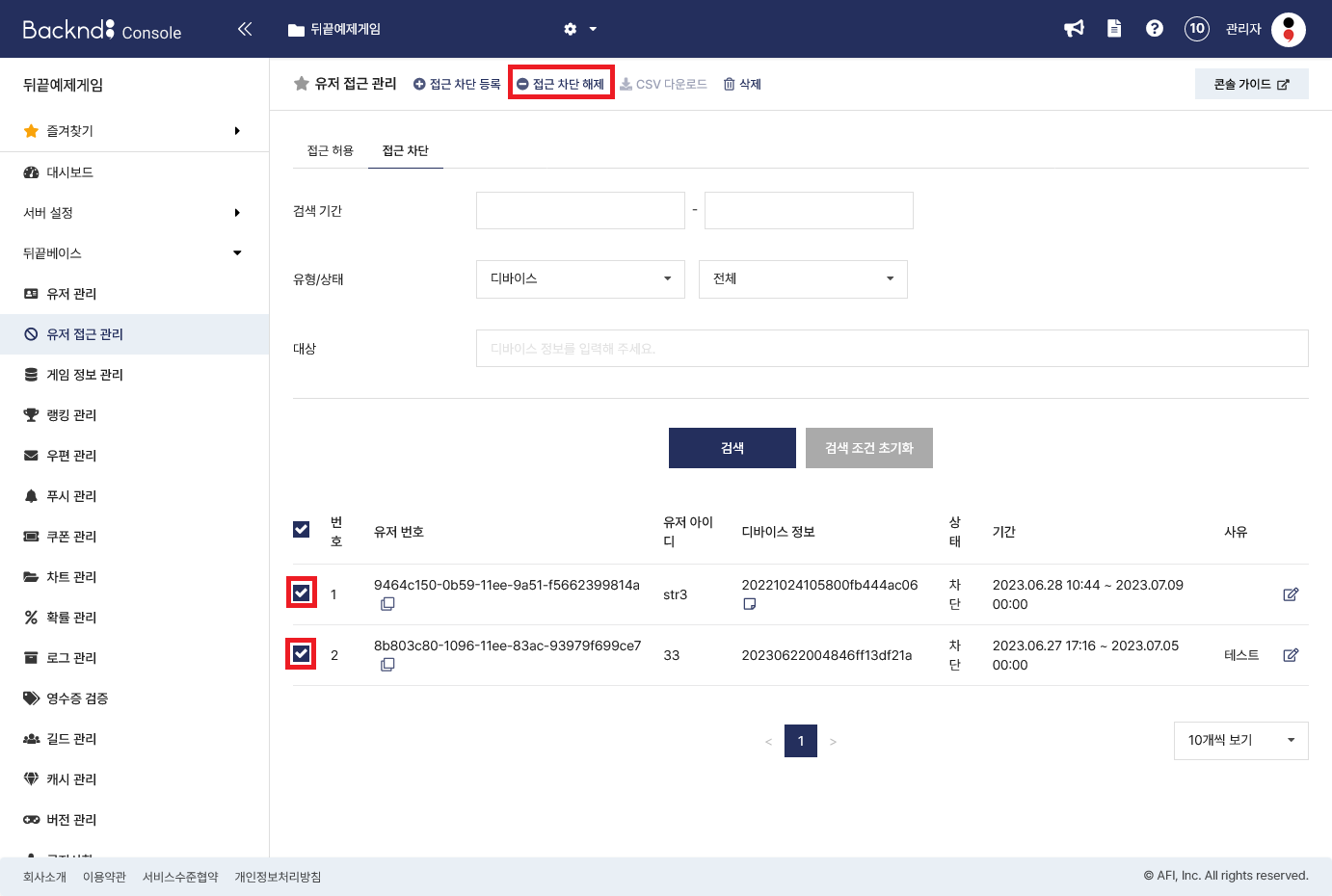
Select (check the box for) the user/device to unblock and click the Unblock button to undo the block.
Download the access block list as CSV
After setting the search period, if the results show, you can download the access block list as a CSV file.
Remove blocked users/devices
Select (check box) the user/device to unblock and click the Remove button to remove the access block history.