Google Cloud Platform Settings
The app must be registered to the Google Console to use Google Login with Android.
If the app is registered, skip to [Create a project in Google Cloud Platform] (#2-Create-a-project-in-Google-Cloud-Platform).
1. Register the application to Google Play
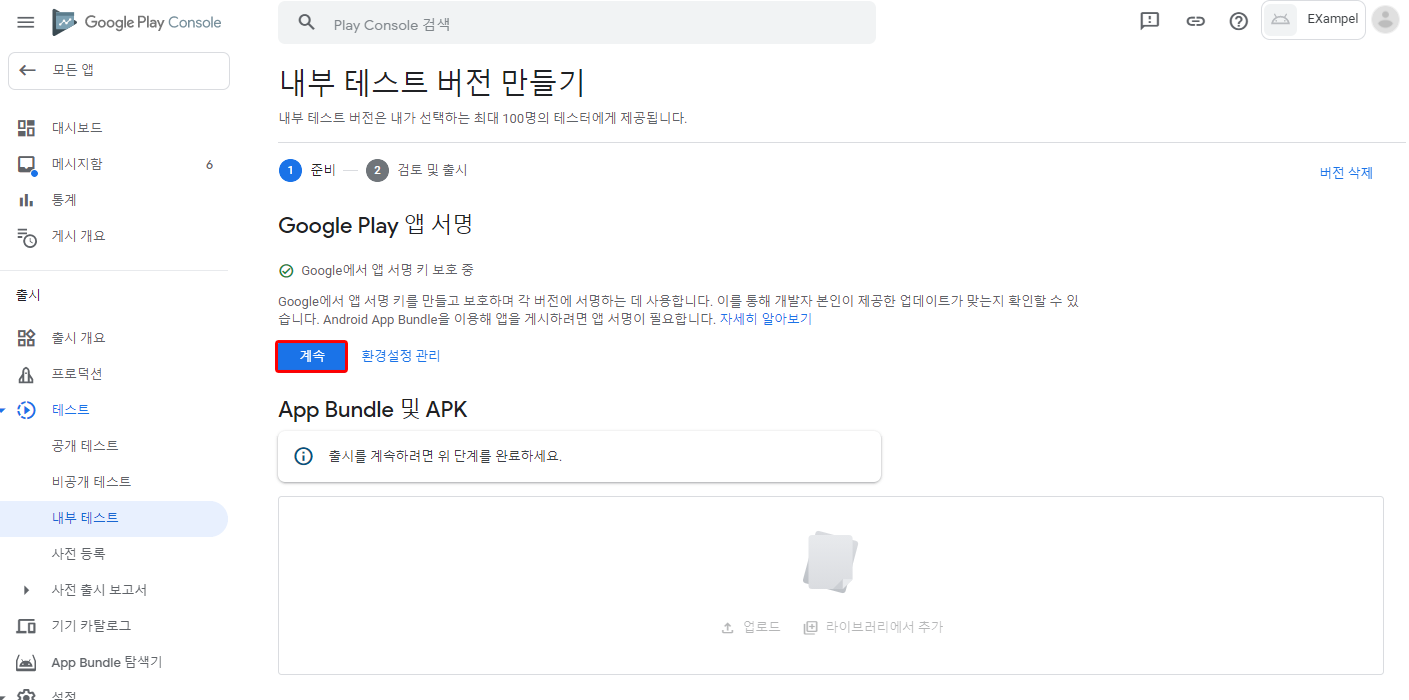
Google Play Console > Create app > Release > Production or (Open, Closed, Internal) testing > Create new release
- 1) From Google Play App Signing, click Continue to register the app signature and issue the App Signing Key Certificate.

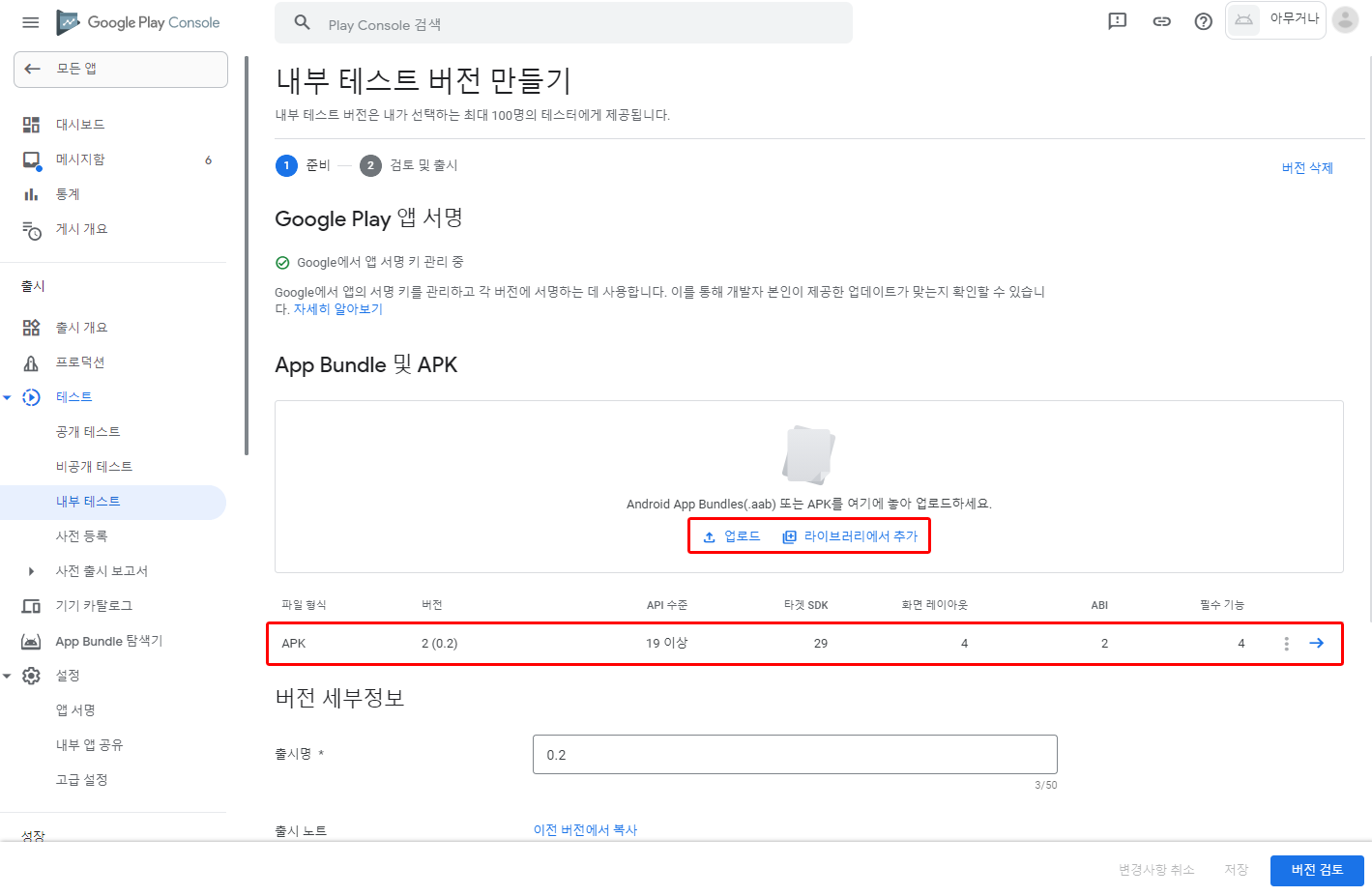
- 2) Upload APK or App Bundle to issue Upload Key Certificate.
- 3) The issued app signature can be checked from Setup > App Integrity on the left. It is later used to register the app to Google Cloud Platform.

2. Create a project on Google Cloud Platform
- 1) Google Cloud Platform > Select Projects > Create New Project
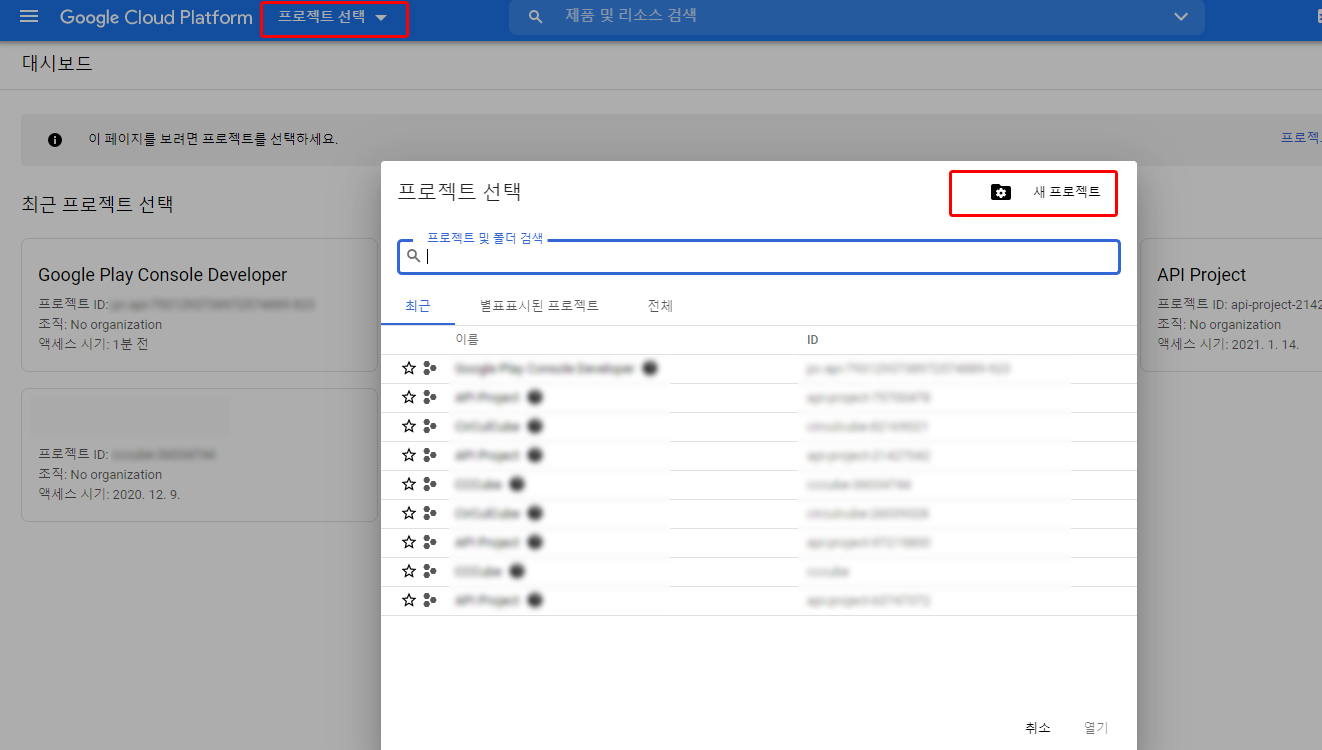
- 2) Enter the desired name for the project and click CREATE.
- 3) After selecting the project, click APIs and services > OAuth consent screen in the sidebar.

- 4) Set User Type as External.
- 5) Enter the required fields (App name, User support email, and Developer contact information) and click SAVE AND CONTINUE.
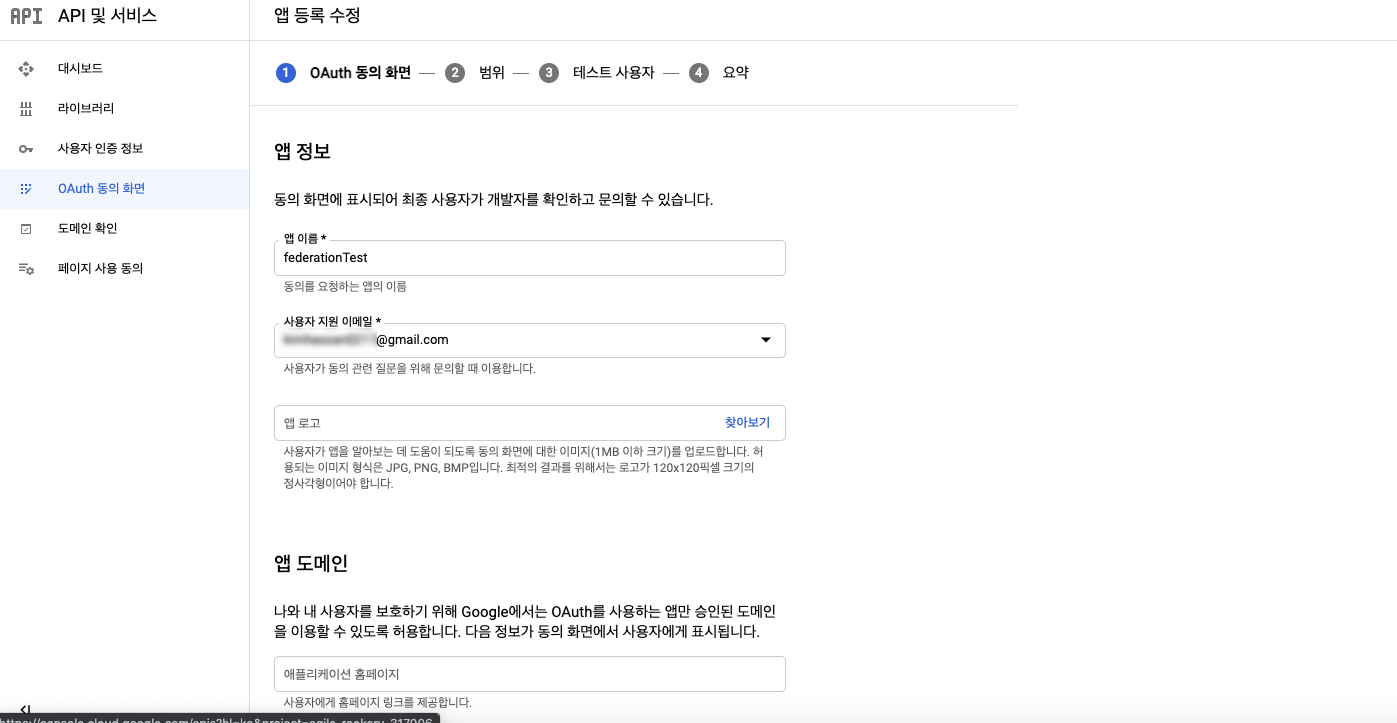
- 6) In Scopes, skip all the fields and click SAVE AND CONTINUE.

- 7) Add an account that will test the 'Sign in with Google' function.
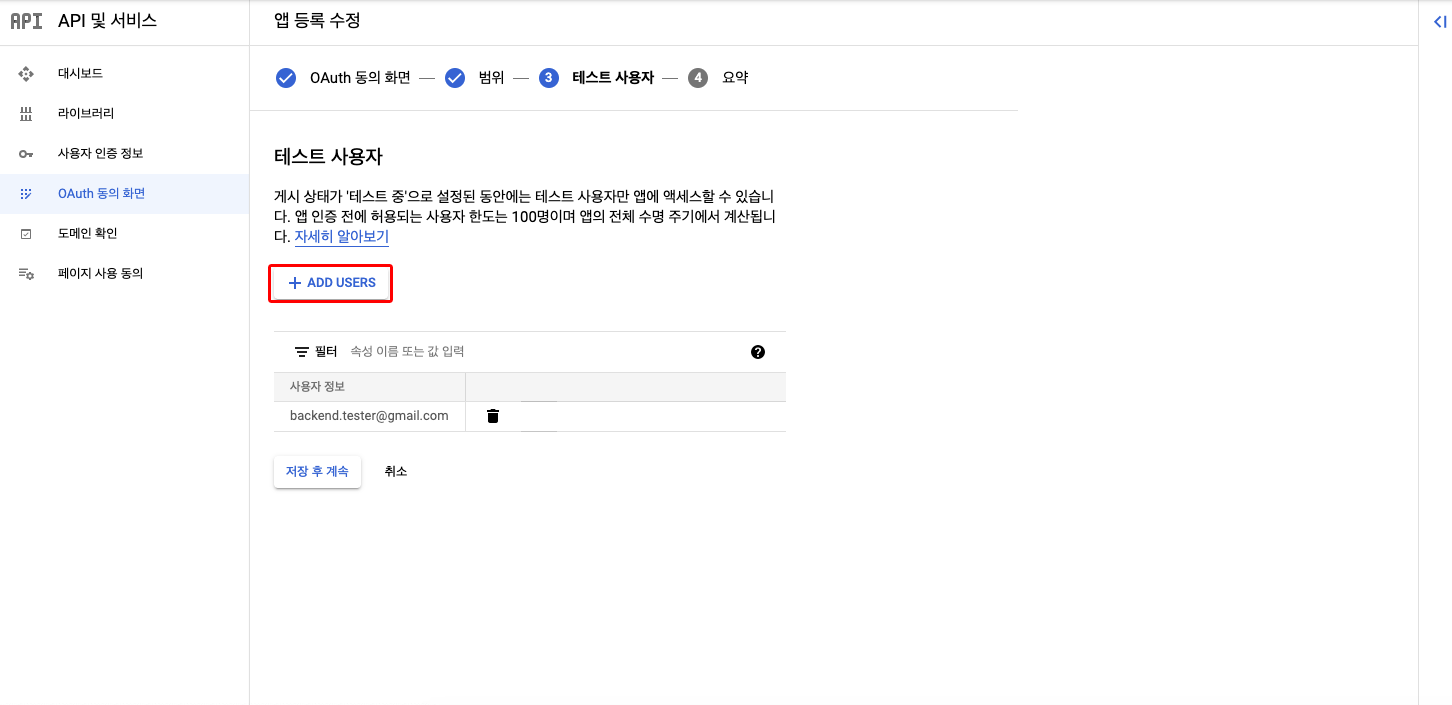
3. Create client IDs for Android authentication
To use the 'Sign in with Google' function in Android, you must create the following three client IDs.
- Android client ID created with an app signing key
- Android client ID created with an upload key
- Web client ID that will send a request from the SDK to the server
3-1. Create an Android client ID using an app signing key
- Select Create credentials > OAuth client ID.
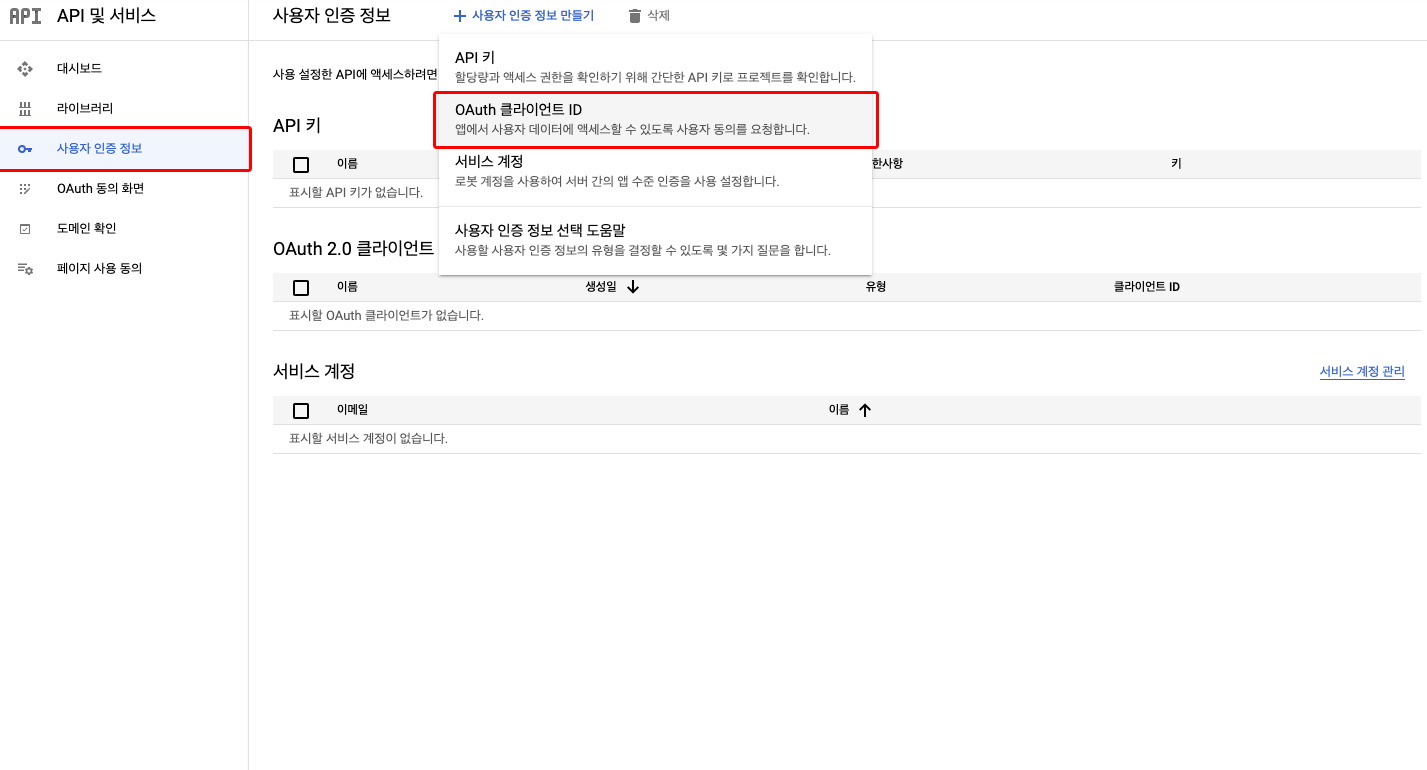
Set Application type to Android and enter the Package name of the app to upload to Google Console.
From Google Console - Selected app - Settings - App integrity, copy the SHA-1 certificate fingerprint of the App signing key certificate and paste it into SHA-1 certificate fingerprint.
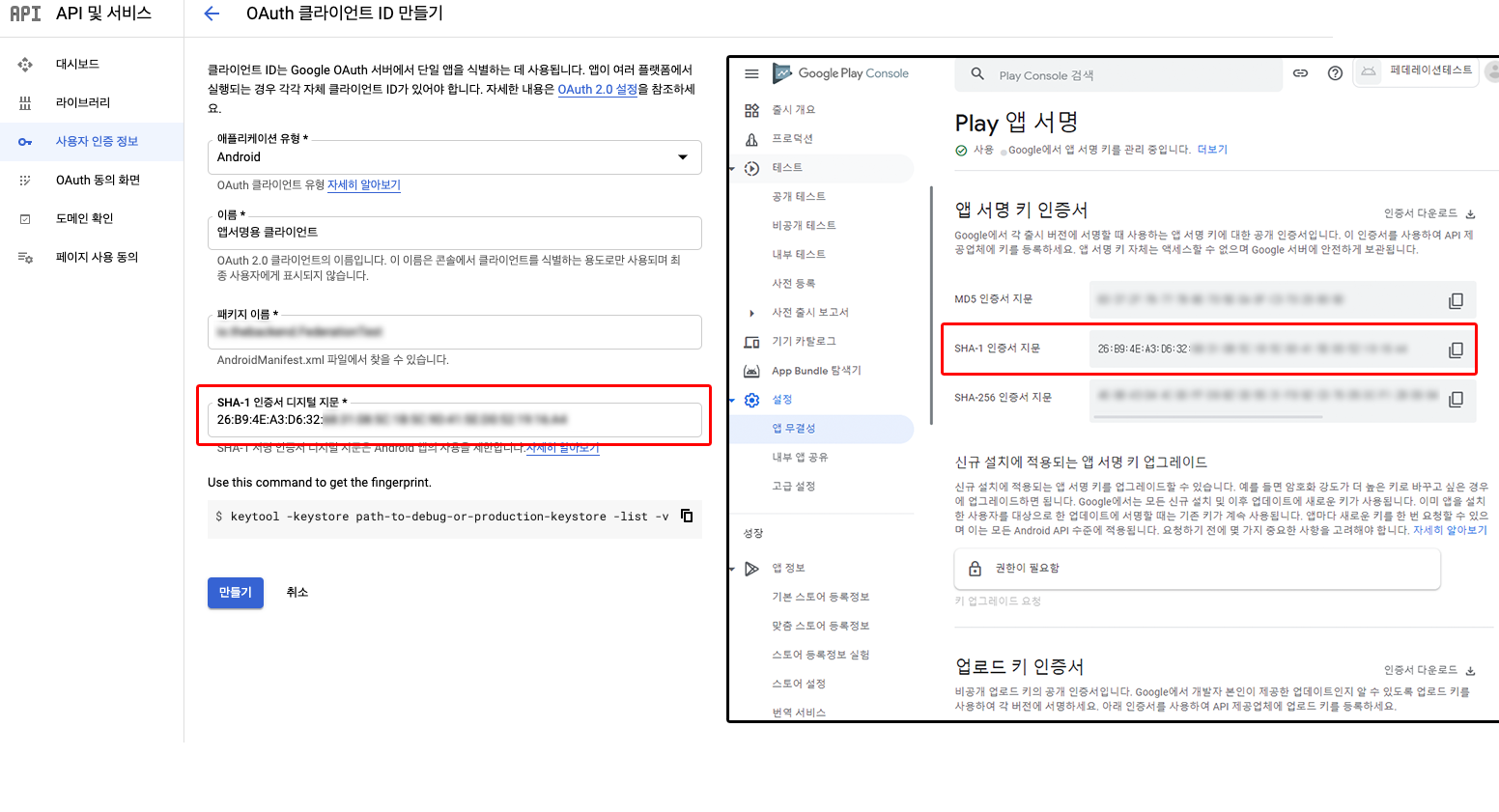
- Click CREATE.
3-2. Create an Android client ID using an upload key
- Select Create credentials > OAuth client ID.
Set Application type to Android and enter the Package name of the app to upload to Google Console.
From Google Console - Selected app - Settings - App integrity, copy the SHA-1 certificate fingerprint of the upload key certificate and paste it into SHA-1 certificate fingerprint.
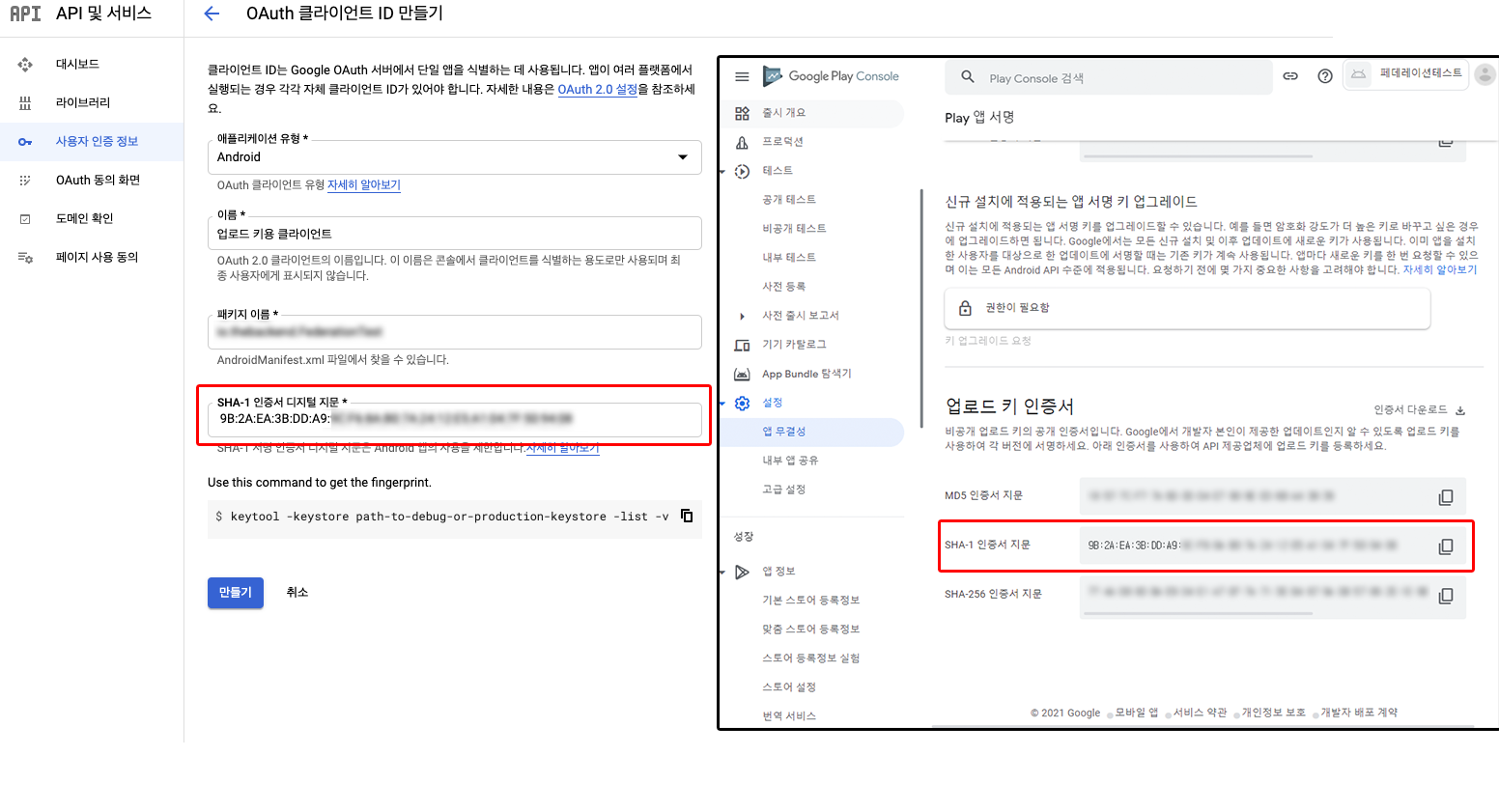
- Click CREATE.
3-3. Create a Web client ID to use in Unity
- Select Create credentials > OAuth client ID.
- Set the Application type to Web application.

- Click CREATE.
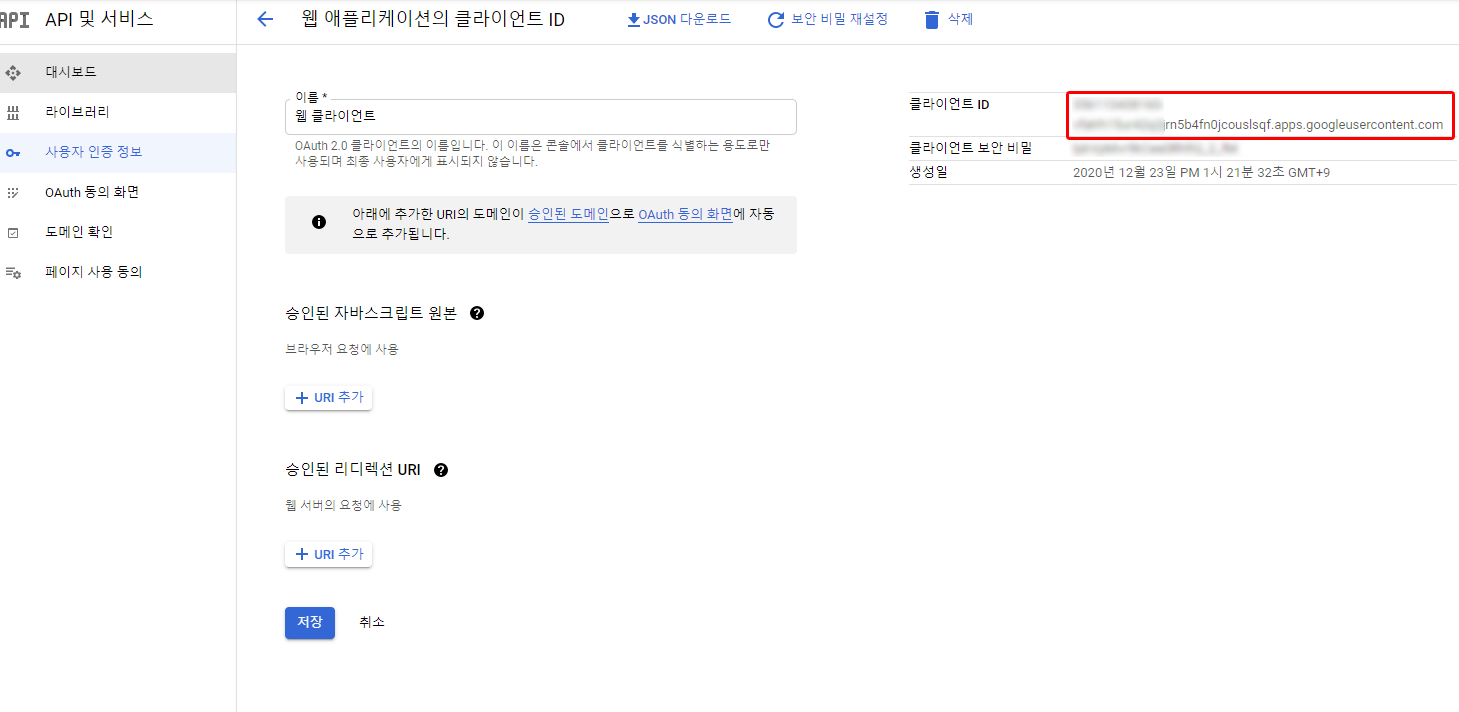
4) Copy the Client ID for web
Copy the client ID of the web client created in Step 3-3. The value is used as an argument for webClientId of BackendFederation.Android.GoogleLogin() in Android Google Login Code.
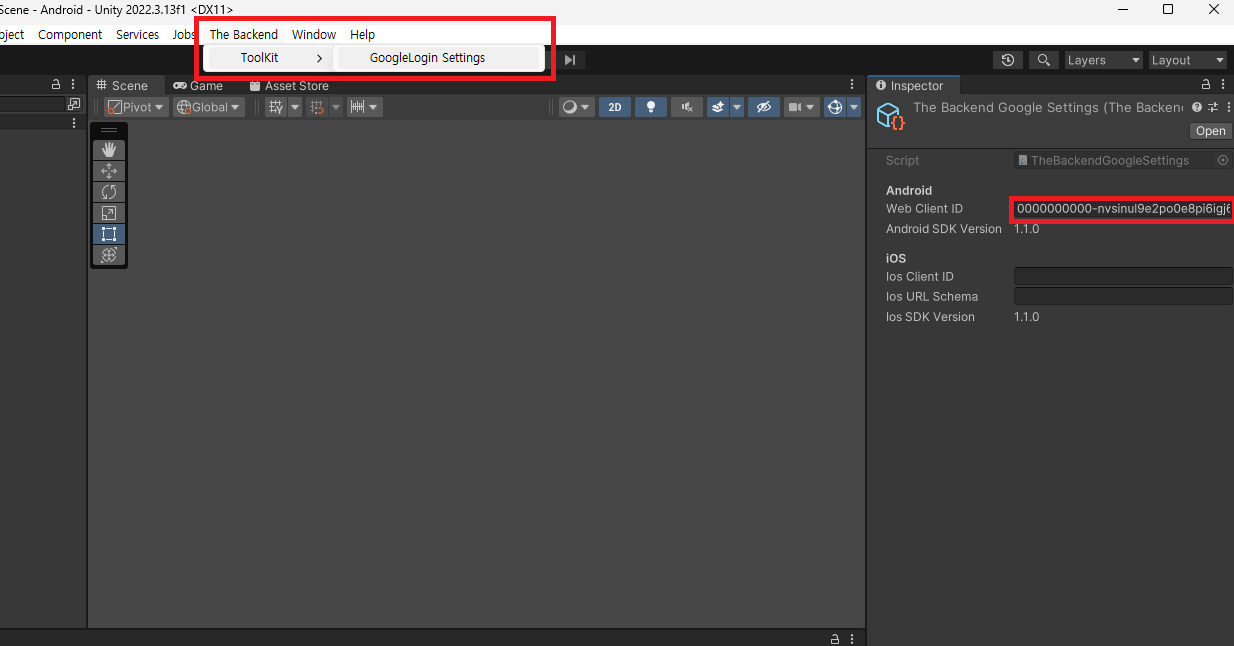
Configure through the BACKND ToolKit Inspector
After installing the BACKND Google Login SDK, you can enter the Web Client ID in the Android field by clicking the upper taskbar of Unity > TheBackend > ToolKit > GoogleLogin Settings.