Chart and Probability Settings
Create chart/probability and upload files
Gameplay relies on various internal game data, including a wide range of balance values, item compositions, and reward information.
These data are uploaded to the BACKND Console via the 'Chart and Probability' function and then downloaded from the client (game) for use.
Refer to Chart Management and Probability Management for details on charts and probabilities.
1. Check chart file
Check the chart data file in the Assets/Food Truck Venture Datas folder inside the project folder.
2. Create chart folders
Create the following 7 chart folders in BACKND Console > Chart menu.
Click Create Folders in the chart menu and fill in the fields to create each folder.
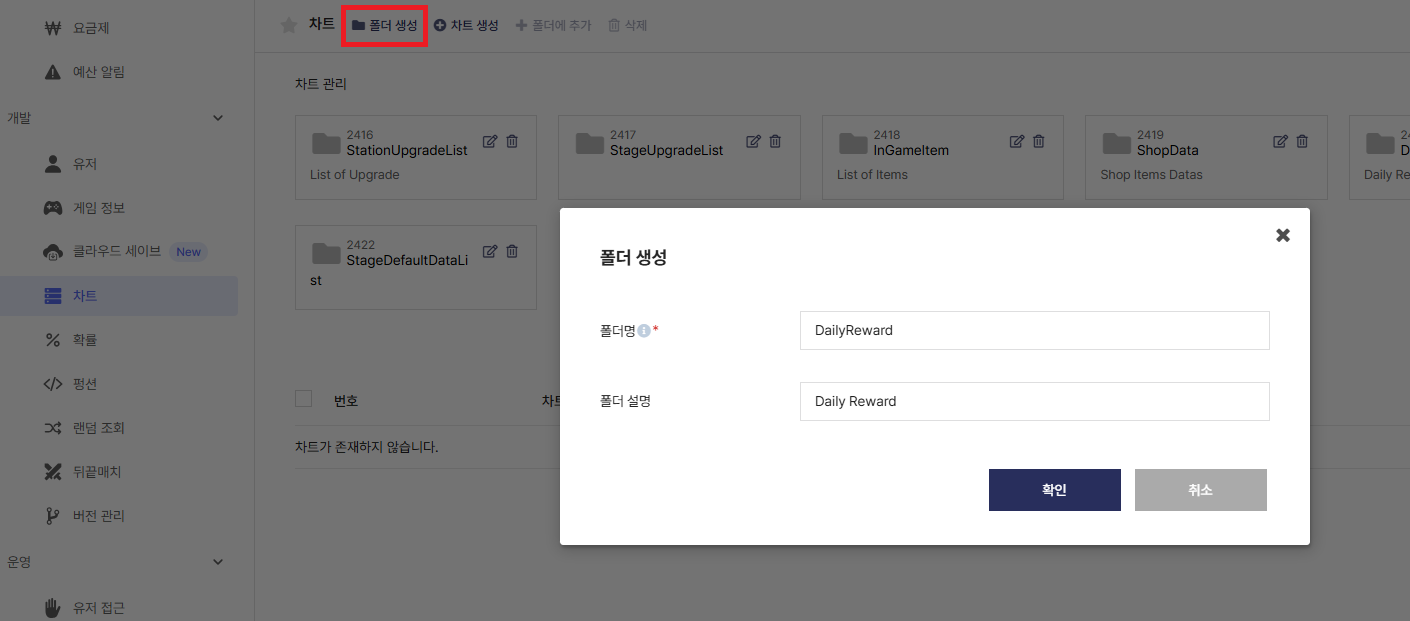
A total of 7 chart folders must be created according to the names and descriptions below.
| Folder name | Folder description |
|---|---|
| StationUpgradeList | List of Upgrade |
| StageUpgradeList | |
| InGameItem | List of items |
| ShopData | Shop Items Datas |
| DailyReward | Daily Reward |
| CharacterData | Character Data |
| StageDefaultDataList |
3. Create and upload charts
After creating a chart in each folder, upload the chart files and click Apply file.
Click Create Chart inside a folder to enter the name and description. Then, select the mail usage option to create the chart.
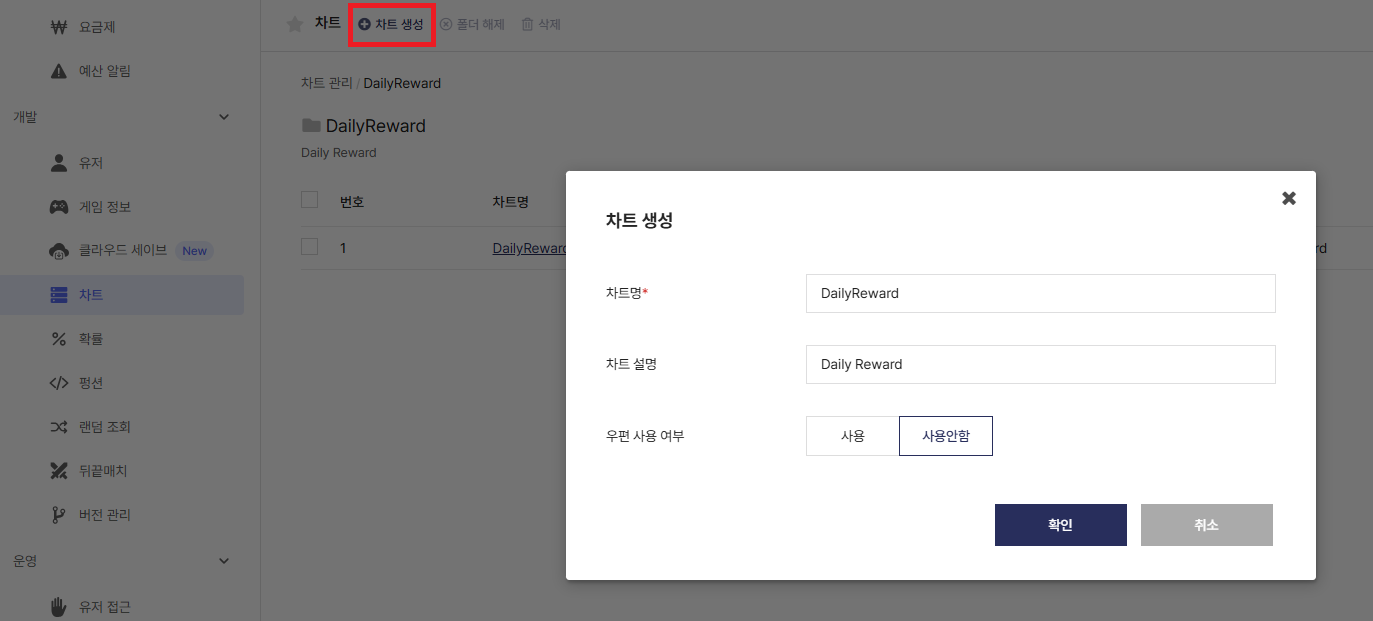
Click the created chart, then click Upload Chart File on the next screen to upload the downloaded chart data file.
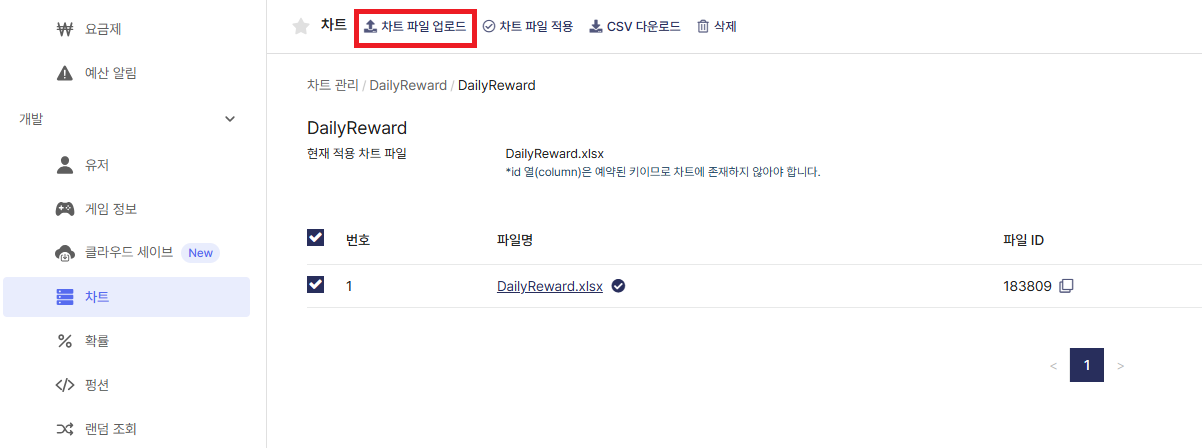
Check the checkbox next to the uploaded file, then click Apply Chart File to complete the procedure.
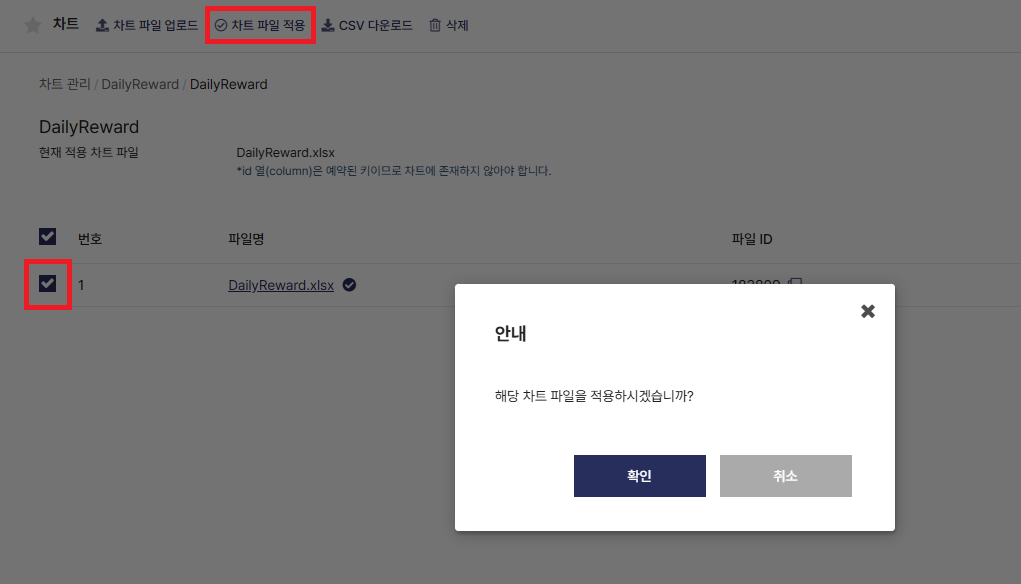
After uploading the chart data file, you must apply the chart file.
If the file is not applied, the data uploaded to the BACKND Console will not be accessible from the client.
Refer to the table below to upload the chart data to each folder.
StationUpgradeList folder
| Chart name | File name to upload | Chart description | Mail functions |
|---|---|---|---|
| STG0001_STS0001 | STG0001_STS0001.xlsx | Burrito Station's List of Upgrade | Unused |
| STG0002_STS0001 | STG0002_STS0001.xlsx | Taco Station's List of Upgrades | Unused |
| STG0002_STS0002 | STG0002_STS0002.xlsx | Juice Station's List of Upgrade | Unused |
| STG0003_STS0001 | STG0003_STS0001.xlsx | Hot Dog Station's List of Upgrades | Unused |
| STG0003_STS0002 | STG0003_STS0002.xlsx | Cola Station's List of Upgrades | Unused |
| STG0003_STS0003 | STG0003_STS0003.xlsx | Burrito Station's List of Upgrade | Unused |
StageUpgradeList folder
| Chart name | File name to upload | Chart description | Mail functions |
|---|---|---|---|
| UE_STG0001 | STG0001.csv | Upgrade Effect Stage 1 | Unused |
| UE_STG0002 | STG0002.csv | Upgrade Effect Stage 2 | Unused |
| UE_STG0003 | STG0003.csv | Upgrade Effect Stage 3 | Unused |
InGameItem folder
| Chart name | File name to upload | Chart description | Mail functions |
|---|---|---|---|
| DressDatas | DressChartData.xlsx | List of item reward data | Used |
| LootBoxDatas | LootBoxChartData.xlsx | List of loot box data | Unused |
| RewardItemData | RewardItemData.xlsx | List of dress data | Unused |
ShopData folder
| Chart name | File name to upload | Chart description | Mail functions |
|---|---|---|---|
| GemsShopData | GemsShopData.xlsx | Gems sale data in shop | Unused |
| BundleShopData | BundleShopData.xlsx | Bundle sale data in shop | Unused |
| LootboxShopData | LootboxShopData.xlsx | Lootbox sale data in shop | Unused |
DailyReward folder
| Chart name | File name to upload | Chart description | Mail functions |
|---|---|---|---|
| DailyReward | DailyReward.xlsx | Daily Reward | Unused |
CharacterData folder
| Chart name | File name to upload | Chart description | Mail functions |
|---|---|---|---|
| SpecialCustomer | SpecialCustomer.xlsx | List of special customer | Unused |
StageDefaultDataList folder
| Chart name | File name to upload | Chart description | Mail functions |
|---|---|---|---|
| StageDefaultData | StageDefaultData.xlsx | *** | Unused |
If the mail function is 'Enabled', the chart data is used as reward items that can be distributed via in-game mail.
4. Create and upload probabilities
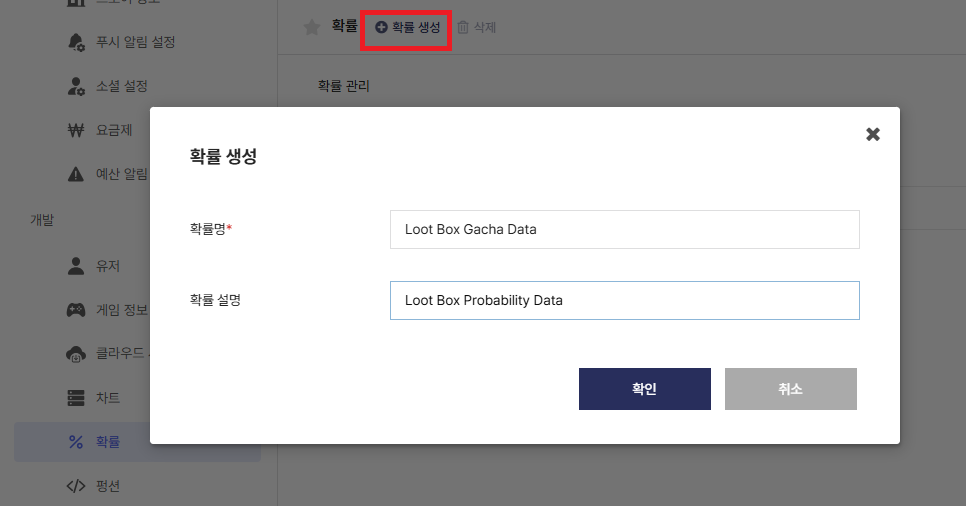
Create 'Loot Box Gacha Data' probability in BACKND Console > Probability menu, then upload and apply the file.
Refer to the following to create the probabilities.
- Probability name: Loot Box Gacha Data
- Probability description: Loot Box Probability Data
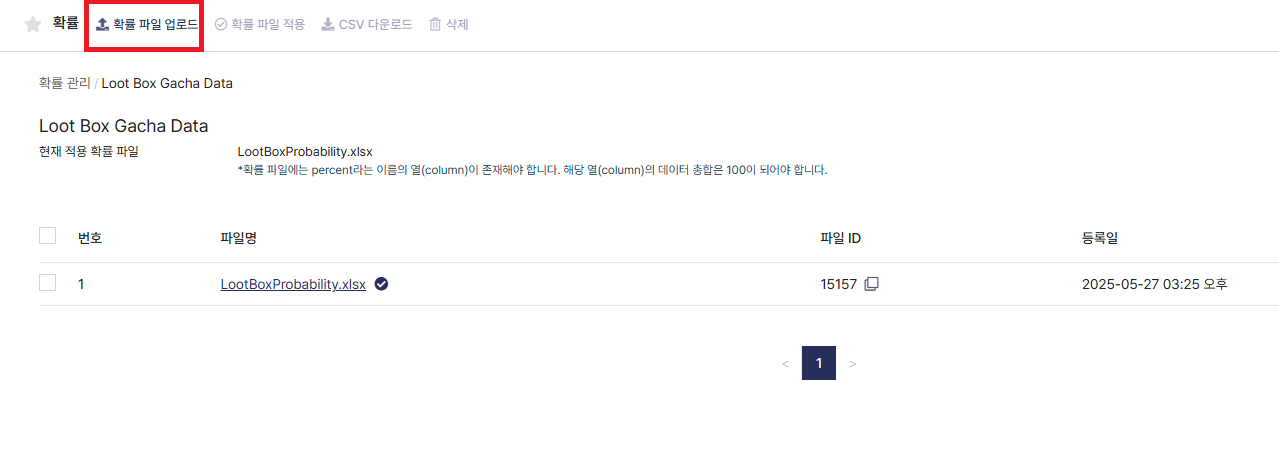
Click Upload Probability File to upload the downloaded probability data file.
The following is the filename to upload:
- LootBoxProbability.xlsx
Click Apply File after uploading the probability file.
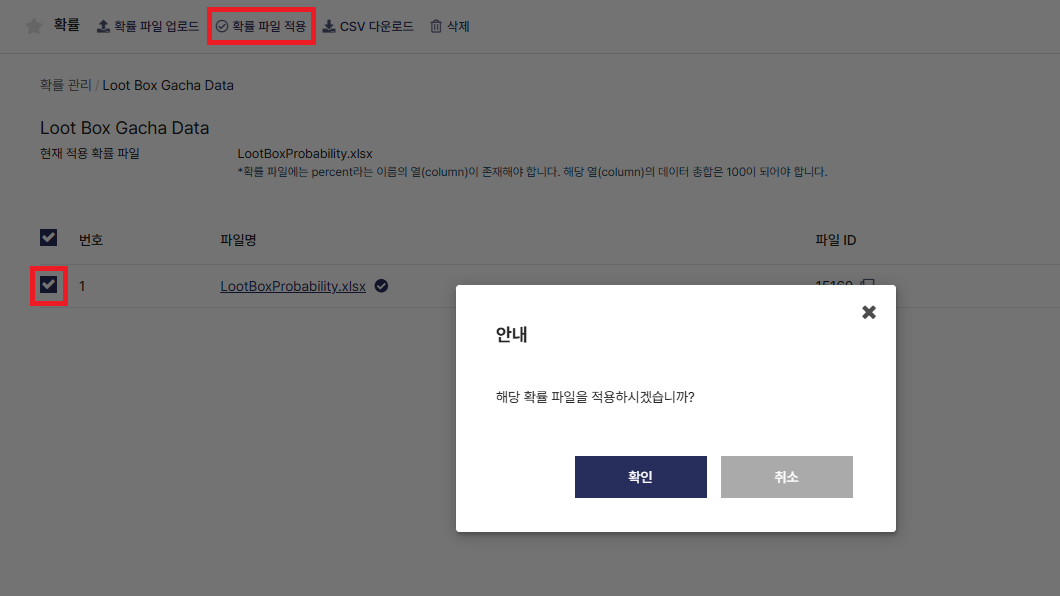
After uploading the probability data file, you must apply the probability file.
If the file is not applied, the data uploaded to the BACKND Console will not be accessible from the client.