Project Download and Game Settings
For the Food Truck Venture project to run properly, the following initial setup is required in both Unity and BACKND Console.
Below is the list of necessary tasks required to run the project properly.
- Unity - Scene and build platform settings
- Unity - Settings for clientAppId and signatureKey values generated from BACKND Console
- Unity - ScriptableObject settings
- BACKND Console - Create a game information table
- BACKND Console - Leaderboard settings
- BACKND Console - Create and apply chart/probability
The following fields can be configured additionally after running the game.
- BACKND Console - Announcements
- BACKND Console - Mail
- In-app payments and receipt verification
Project download and Unity settings
1. Download the Food Truck Venture project from GitHub.
- GitHub link: git repository Food Truck Venture
- This example was developed on Unity 2022.3.56f1 and BACKND 5.17.1.
- The Google login function uses BACKND Google Login v2.0.
2. Open the Food Truck Venture project in Unity and execute it.
- Select and open the downloaded project folder in Unity and execute it.
3. Create a new project in BACKND Console.
- Access BACKND Console and create a new project.
- After creating the project, check the Client App ID and Signature Key. See the relevant documentation for specific details.
- BACKND SDK is already applied in the project, so there is no need to install it separately.
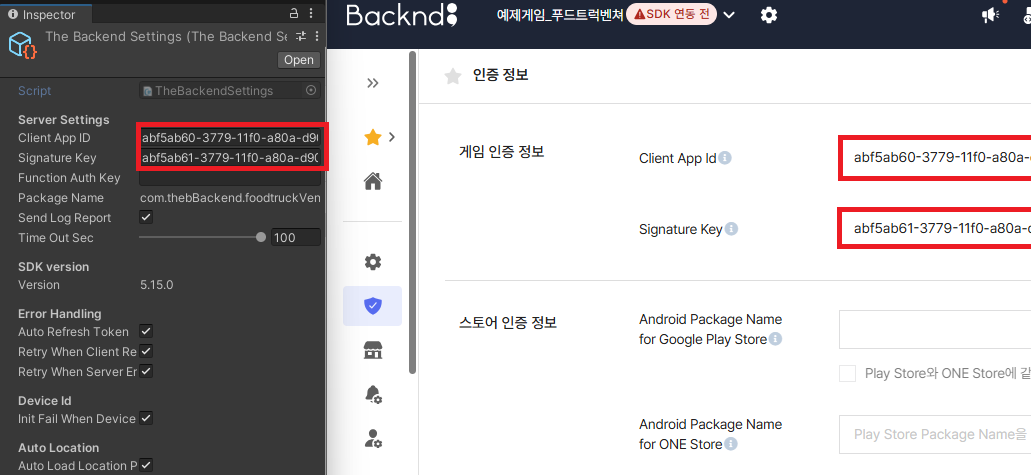
4. Enter the Client App ID and Signature Key issued in Step 3 to TheBackendSettings.
Click The Backend > Edit Settings from the top menu of Unity.
Paste the Client App ID and Signature Key in the Inspector window.
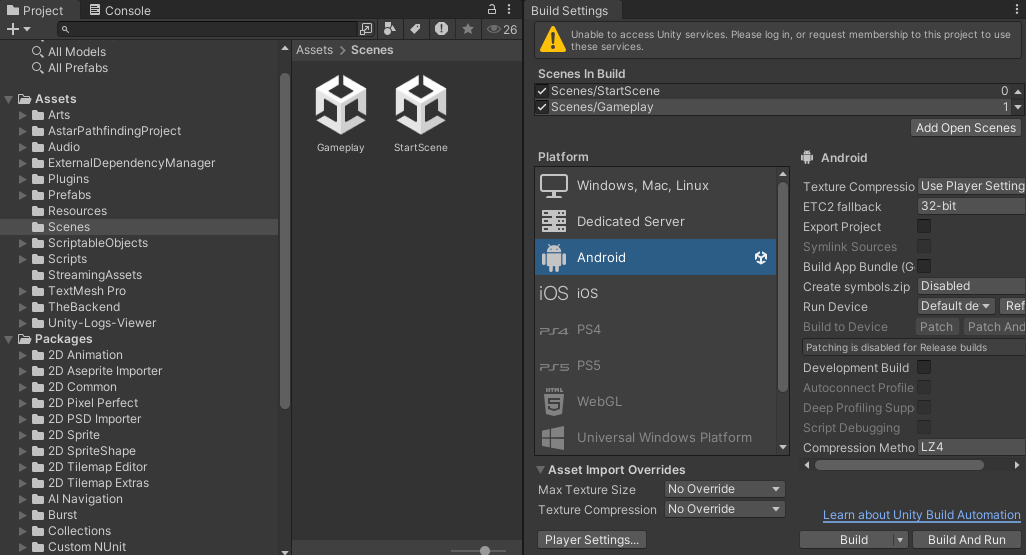
5. Click the File tab at the top of Unity > Build Settings > Scenes in Build. Check if the scenes are registered.
You can check the scenes in Assets > Scenes folder.
The scenes must be registered according to the following order.
- StartScene
- GamePlay
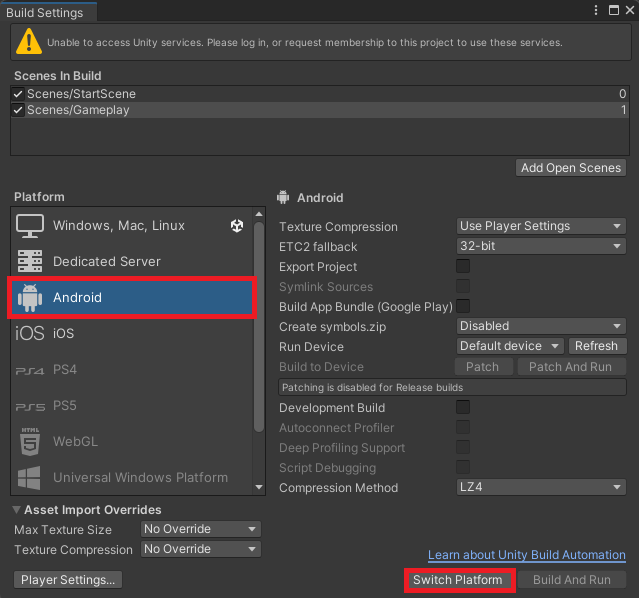
6. Check that the Platform is set to Android in Build Settings.
If it's not set to Android, select Android and click Switch Platform to apply the change.