Data Table and Leaderboard Settings
Setting up game tables and leaderboards in the BACKND Console
To save and load player progress, collected items, login history, etc., you must create 4 user data tables and 1 leaderboard in the BACKND Console.
The 4 required tables are as follows.
- UserWardrobeData
- UserStageData
- UserMainData
- UserDailyLoginData
Refer to the following to create the tables.
✅ Schema-unused tables allow flexible data storage and do not require fixed column structures.
✅ Schema-use tables require set column names and types. This structure must be followed upon storage.
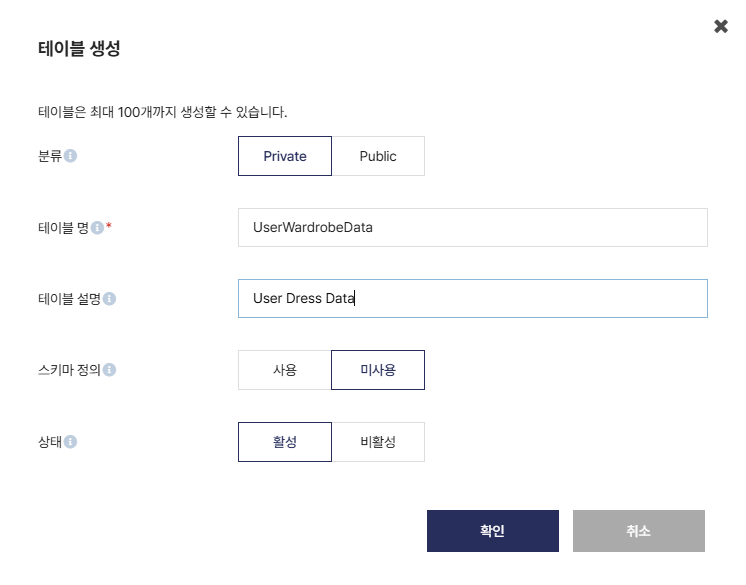
1. In BACKND Console > Game Information Management, create the following tables as [Private / Schema-unused] tables.
- Table name : UserWardrobeData
- Table description: User Dress Data
Create a table according to the settings displayed in the image below (Private / Schema-unused).
2. In BACKND Console > Game Information Management, create the following tables as [Private / Schema-use] tables.
| Table name | Table description |
|---|---|
| UserStageData | Player Stage Data |
| UserMainData | Player Data |
| UserDailyLoginData | Player Login Data |
Create a table according to the settings displayed in the image below (Private / Schema-use).
Because this is a schema-defined table, the column names and data types must be designated.
A total of 3 schema-defined tables must be created.
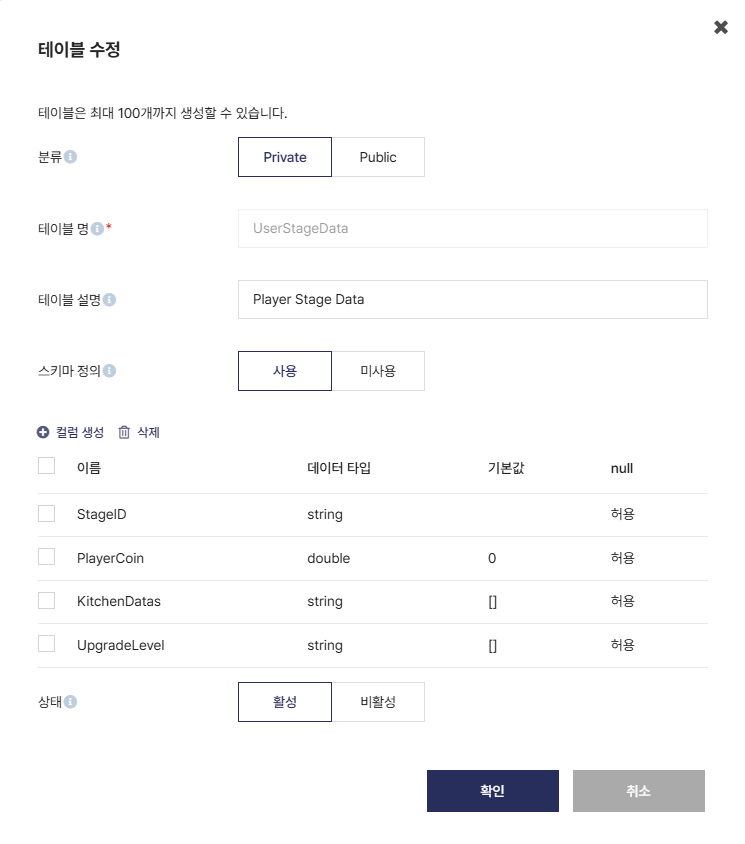
The column names and data types for each created table are as follows.
UserStageData table
| Name | Data type | Default value | null |
|---|---|---|---|
| StageID | string | Allow | |
| PlayerCoin | double | 0 | Allow |
| KitchenDatas | string | [] | Allow |
| UpgradeLevel | string | [] | Allow |
UserMainData table
| Name | Data type | Default value | null |
|---|---|---|---|
| Gems | double | 0 | Allow |
| UsedDressID | string | Allow | |
| TotalCoinsEarned | double | 0 | Allow |
| UsedProfileImageID | string | Allow |
UserDailyLoginData table
| Name | Data type | Default value | null |
|---|---|---|---|
| DailyRewardIdx | int | 0 | Allow |
| TotalLoginCount | int | 0 | Allow |
| LoginStreakCount | int | 0 | Allow |
| LastClaimedDailyRewardDate | string | Allow |
The column names and types are case-sensitive; therefore, their uppercase and lowercase letters must be entered correctly. Any typo will cause data save errors.
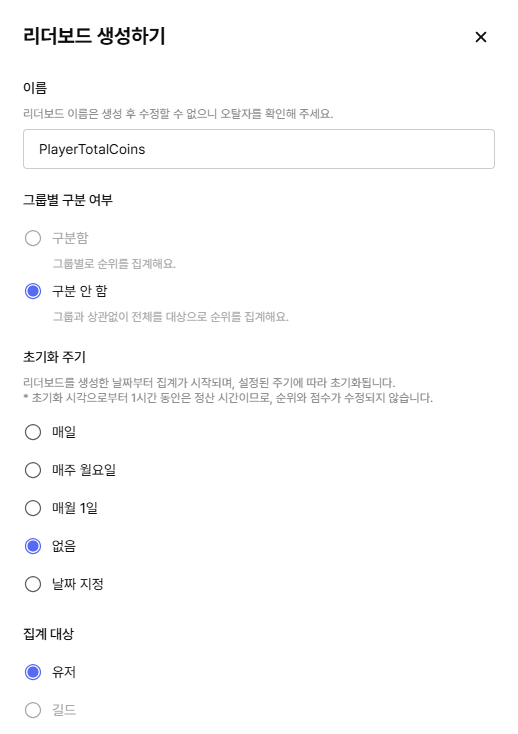
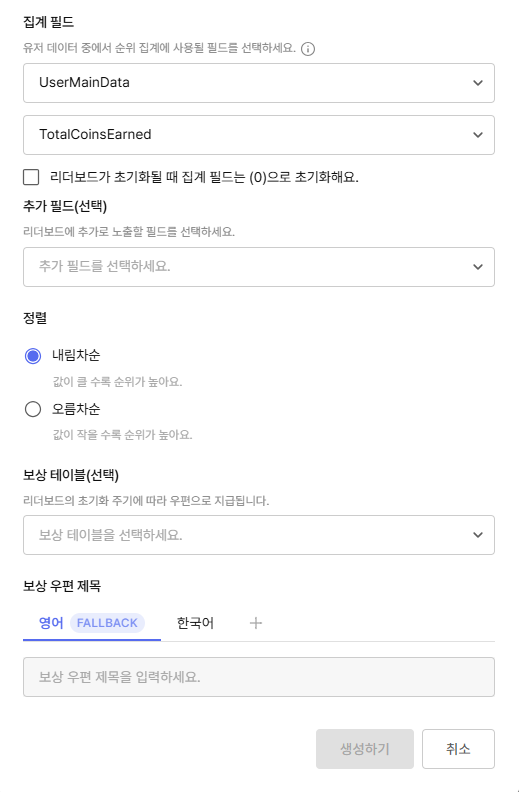
3. In BACKND Console > Leaderboard, click Create Leaderboard to create a leaderboard.
Follow the configuration details below to create the leaderboard.
- Leaderboard name: PlayerTotalCoins
- Group-specific categorization: None
- Collection target: User
- Reset cycle/time: None
- Collection field: UserMainData > TotalCoinEarned
- Sorting: Descending order
Collection field: The numeric field used as the standard for rankings. Example: Total coins, score, etc.
UUID: Unique identifier for the leaderboard. Required when integrating with the Unity project.
Refer to the following image to create the leaderboard.
4. Setting up the leaderboard in the Unity project
To integrate the leaderboard in Unity, you must enter the UUID of the leaderboard that was just created.
The leaderboard UUID must be entered in the Unity project for it to operate properly.
Copy the leaderboard UUID.
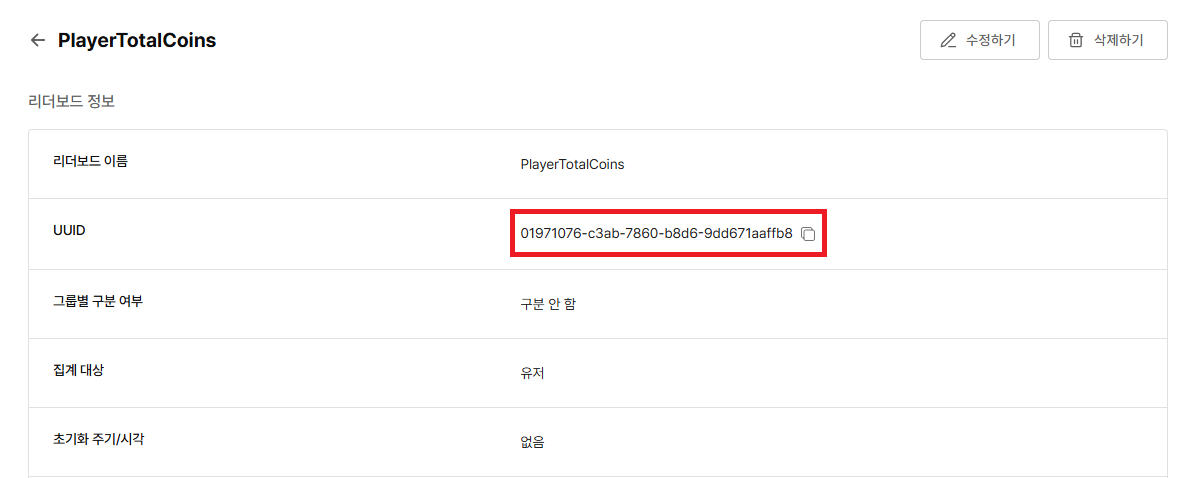
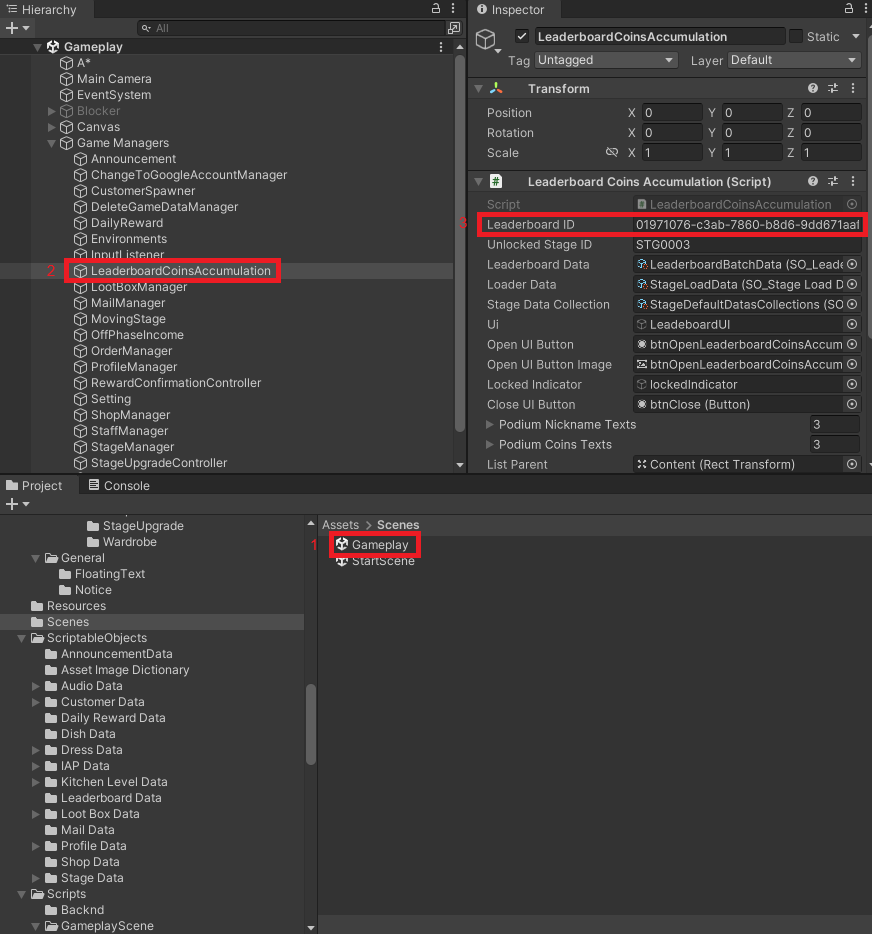
To enter the copied leaderboard UUID, go to the Gameplay Scene.
- Copy the leaderboard UUID from the BACKND Console.
- Open
Assets/Scenes/Gameplay.unityscene in the Unity editor. - Once the scene is open, select
Game Managers > LeaderboardCoinsAccumulationobject in the Hierarchy. - Paste the copied UUID into the
Leaderboard IDfield in the Inspector window ofLeaderboardCoinsAccumulation.
Refer to the following image for configuration.