Unity ScriptableObject Settings
Set up the chart/probability file ID in ScriptableObject
To use the chart and probability data in-game, the file ID of the relevant data must be linked to the ScriptableObject in the Unity project.
The data loaded from the BACKND Console charts and probabilities are saved in ScriptableObjects and reflected in-game.
File IDs are generated when the chart or probability files are uploaded, and the chart or probability files must be applied to access the data.
1. Link the chart data to ScriptableObject
- Copy the file ID that has been applied to the chart.
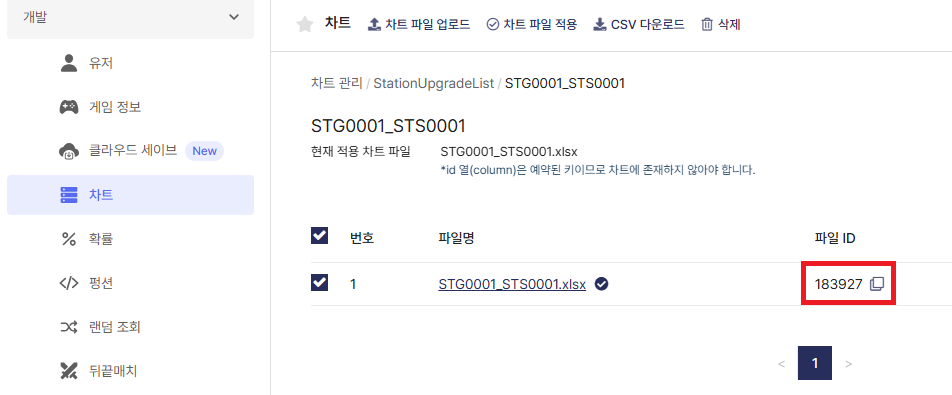
- Copy the file ID that has been applied to the chart.
- Find and select the ScriptableObject that will receive the data. Then, paste the copied chart file ID to the Inspector window.
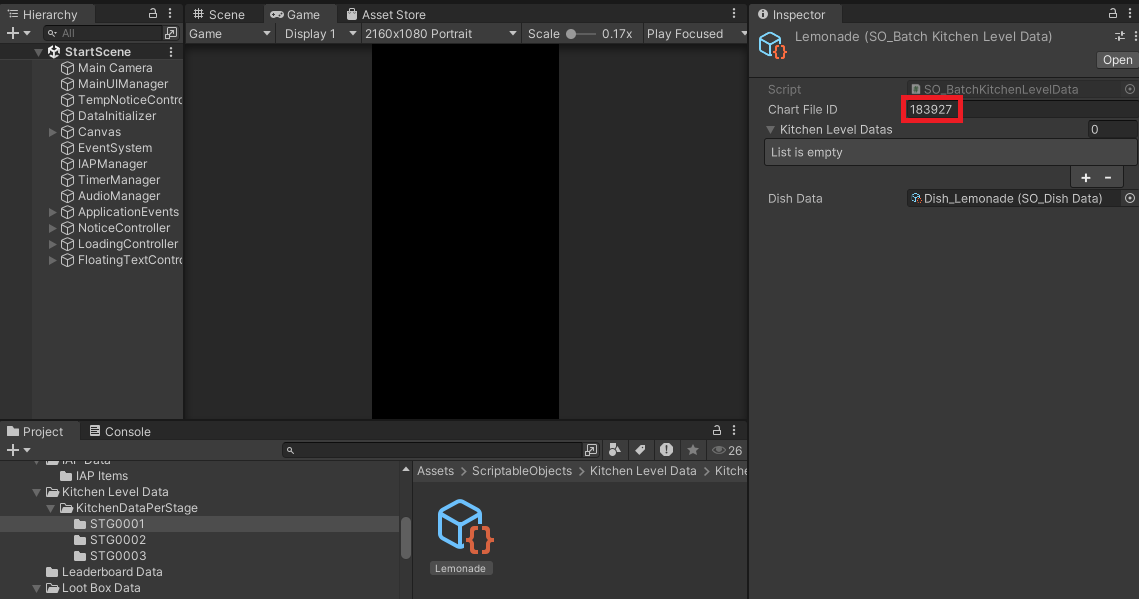
- Find and select the ScriptableObject that will receive the data. Then, paste the copied chart file ID to the Inspector window.
The default path for ScriptableObjects is Assets/ScriptableObjects.
Access the path by navigating the folder structure shown below, or search for the filename in Unity.
For example, to find a ScriptableObject named [Lemonade], follow the path Assets/ScriptableObjects/Kitchen Level Data/KitchenDataPerStage/STG0001 to find the [Lemonade] file.
Chart StageUpgradeList folder
| Chart data | Scriptable object file location | File name |
|---|---|---|
| STG0001_STS0001 | Kitchen Level Data/KitchenDataPerStage/STG0001 | Lemonade |
| STG0002_STS0001 | Kitchen Level Data/KitchenDataPerStage/STG0002 | Cola |
| STG0002_STS0002 | Kitchen Level Data/KitchenDataPerStage/STG0002 | HotDog |
| STG0003_STS0001 | Kitchen Level Data/KitchenDataPerStage/STG0003 | Juice |
| STG0003_STS0002 | Kitchen Level Data/KitchenDataPerStage/STG0003 | Taco |
| STG0003_STS0003 | Kitchen Level Data/KitchenDataPerStage/STG0003 | Burrito |
Chart StationUpgradeList folder
| Chart data | Scriptable object file location | File name |
|---|---|---|
| UE_STG0001 | Stage Data/Stage Upgrade Data | STG0001 |
| UE_STG0002 | Stage Data/Stage Upgrade Data | STG0002 |
| UE_STG0003 | Stage Data/Stage Upgrade Data | STG0003 |
Chart InGameItem folder
| Chart data | SO file location | File name |
|---|---|---|
| DressDatas | Dress Data | DressData |
| LootBoxDatas | Loot Box Data | LootBoxDatas |
Chart ShopData folder
| Chart data | SO file location | File name |
|---|---|---|
| GemsShopData | Shop Data | GemsSaleData |
| BundleShopData | Shop Data | BundleSaleData |
| LootboxShopData | Shop Data | LootboxSaleData |
Chart DailyReward folder
| Chart data | SO file location | File name |
|---|---|---|
| DailyReward | Daily Reward Data | DailyRewardBatchData |
Chart CharacterData folder
| Chart data | SO file location | File name |
|---|---|---|
| SpecialCustomer | Customer Data | CustomerBatchData |
Chart StageDefaultDataList folder
| Chart data | SO file location | File name |
|---|---|---|
| StageDefaultData | Stage Data | StageDefaultDatasCollections |
2. Link the probability data to ScriptableObject
Just like charts, the file ID must be copied and entered into the ScriptableObject for the probability data to be used properly in the game.
- Copy the file ID that has been applied to the probability.
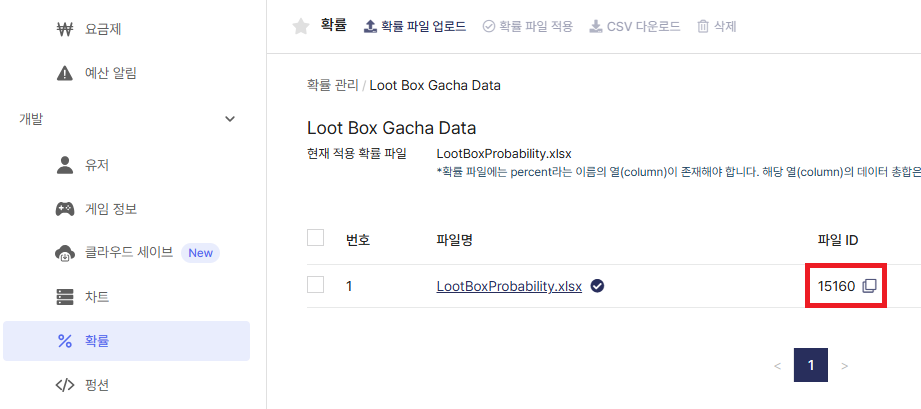
- Copy the file ID that has been applied to the probability.
- Select the ScriptableObject, then paste the copied probability file ID to the Inspector window.
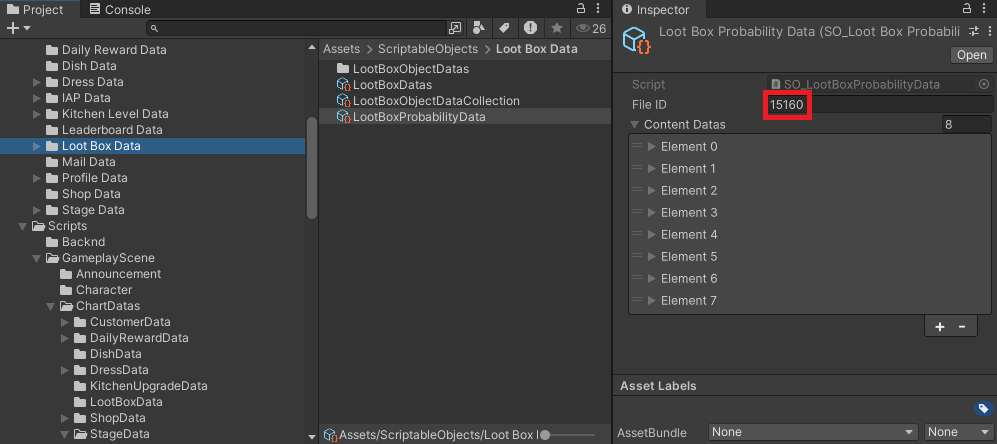
- Select the ScriptableObject, then paste the copied probability file ID to the Inspector window.
The default path for ScriptableObjects is Assets/ScriptableObjects.
Refer to the table below for more detailed locations and ScriptableObject file names. Quickly access the file location with the default paths in the table below, or by searching the filenames.
Probability Loot Box Gacha Data
| Probability data | File location | File name |
|---|---|---|
| LootBoxProbability | Loot Box Data | LootBoxProbabilityData |
3. Start game
All configurations are complete.
Now open StartScene from Unity and click ▶ to run the example game!
Make sure to confirm that the configured chart and probability data are properly applied in-game.